
Appearance
My Availability
The Availability page is where guides tell the system when they are free, when they are not, and where they can request to be assigned to open shifts.
Navigate here from the sidebar under My Availability.
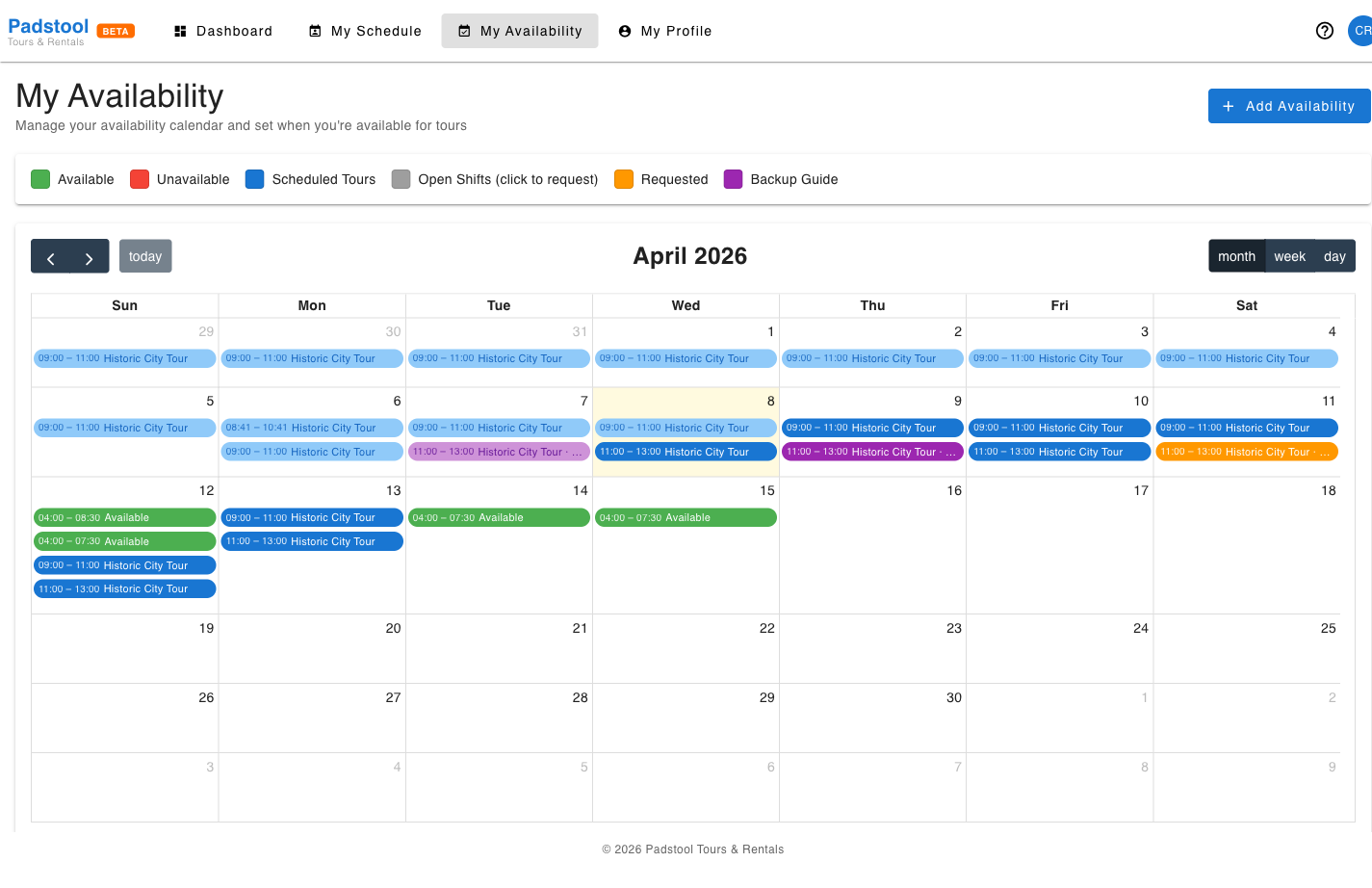
Reading the calendar
The calendar uses colour coding to show everything on one screen:
| Colour | Meaning |
|---|---|
| Green | Available — the guide has marked themselves as available |
| Red | Unavailable — the guide has blocked this time (holiday, day off, etc.) |
| Blue | Scheduled Tours — the guide is already assigned to a tour |
| Grey | Open Shifts — unassigned tour schedules the guide can request |
| Orange | Requested — the guide has submitted a request for this shift, awaiting admin approval |
| Purple | Backup Guide — tours where the guide is assigned as backup |
Adding an availability block
Click Add Availability (top right) to open the dialog.
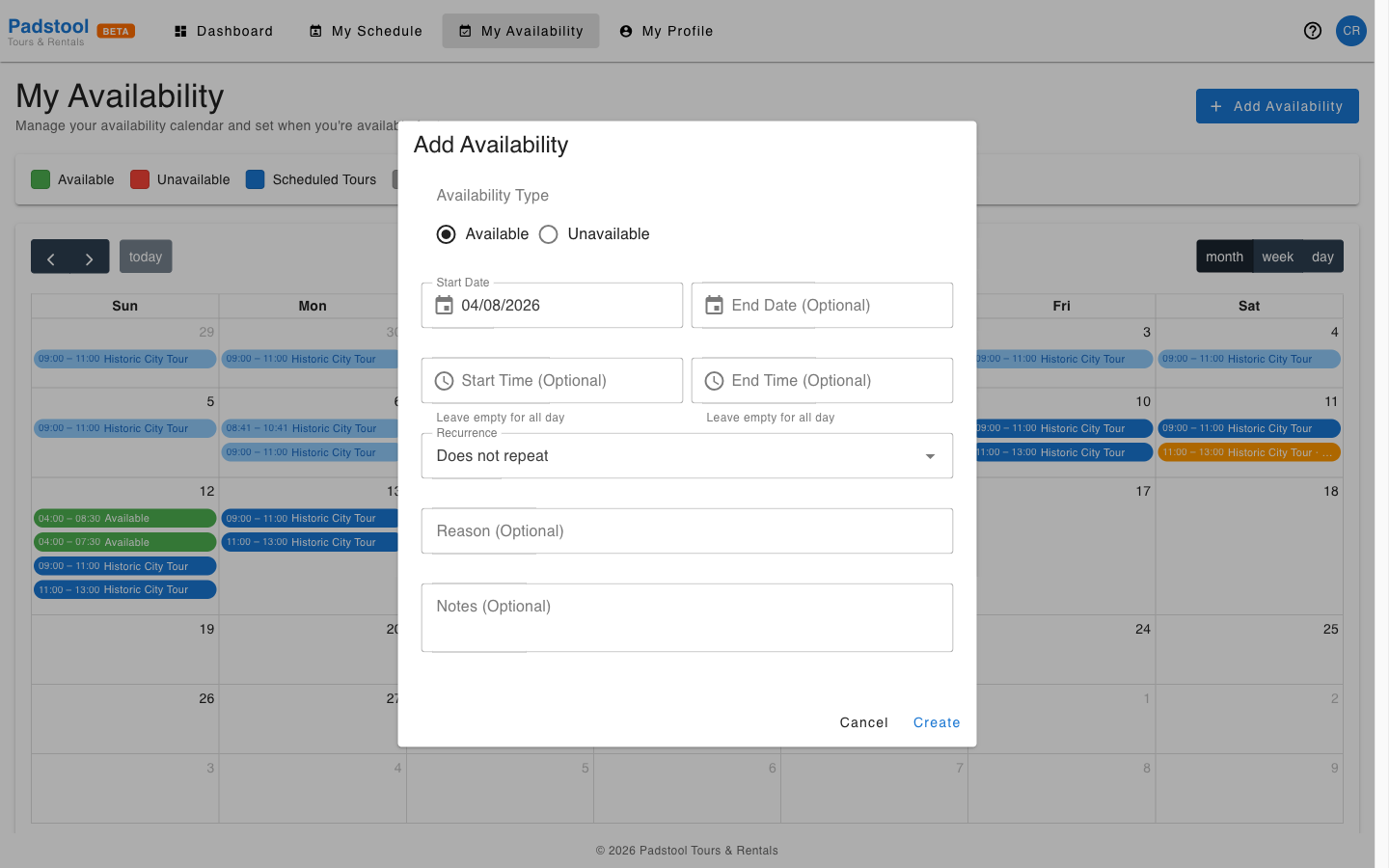
Fill in:
- Availability type — Available or Unavailable.
- Date and time — Start and end date/time for the block.
- Recurrence — Optional. Repeat daily, weekly (select specific days), or monthly. Set an end date for the pattern.
- Notes — Optional free-text note (e.g., "Summer holiday").
Click Save to apply the block. It appears on the calendar immediately.
You can also click directly on a day in the calendar to pre-fill the date in the dialog.
Editing or deleting a block
Click any availability block on the calendar to open an edit dialog. For recurring blocks, you can choose to edit:
- This occurrence only — Changes just the selected date.
- This and following — Updates the selected date and all future dates in the pattern.
- All occurrences — Updates every date in the pattern.
To delete a block, open it and click Delete.
Requesting an open shift
Grey events on the calendar are open shifts — tour schedules that have no assigned guide yet. Guides can request to be assigned by clicking the event.
A confirmation dialog appears asking the guide to confirm the request. After confirming:
- The event turns orange on the calendar to show the request is pending.
- The request appears in the Pending tab on the Dashboard.
- An admin reviews the request in the Schedule Requests panel and approves or rejects it.
- If approved, the event turns blue (Scheduled Tour) and the guide appears on the tour roster.
TIP
Keep your availability up to date — this is how admins know who to assign. If you are available on a day but have not set an availability block, you may be overlooked when an admin is staffing tours.
INFO
A guide can only submit one request per schedule. If you accidentally request a shift you cannot do, contact your operations team to cancel it — there is no self-service cancel on submitted requests.