
Appearance
Booking Sources
Booking sources track where your bookings come from - walk-ins, phone orders, your website, or partner referrals. Each booking is tagged with a source so you can analyze which channels bring in the most business.
How to manage booking sources
- Navigate to Settings > Booking Sources.
- Add, edit, or reorder your sources.
- Changes are saved automatically when you add, edit, or toggle a source.
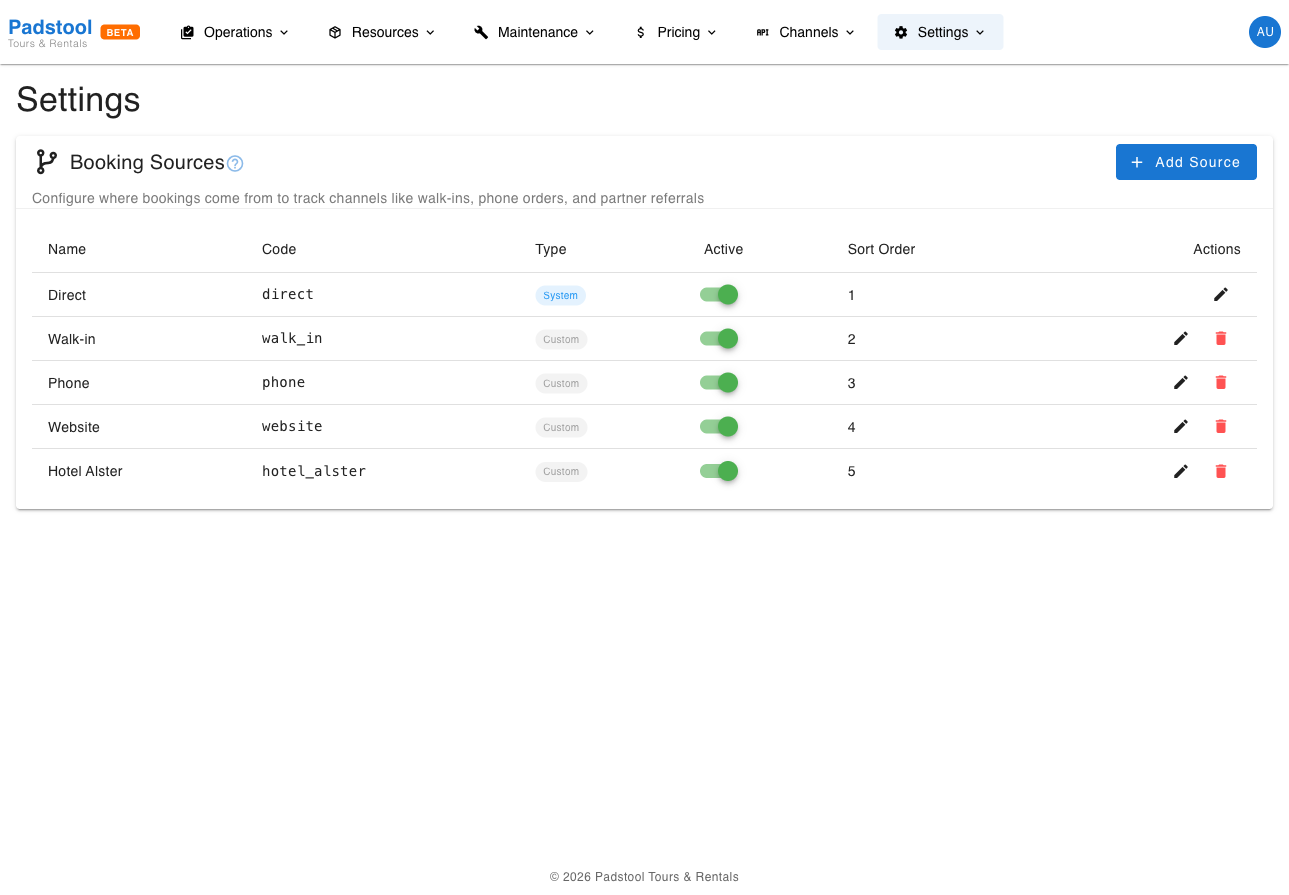
Source list
The table shows all configured booking sources:
| Column | What it shows |
|---|---|
| Name | The display name shown when creating bookings (e.g., "Walk-in", "Phone") |
| Code | A unique identifier used internally (e.g., "walkin", "phone") |
| Type | Whether the source is a built-in System source or a Custom source you added |
| Active | Toggle to enable or disable the source |
| Sort Order | Controls the display order (lower numbers appear first) |
System vs custom sources
System sources are built-in defaults that come with the platform (e.g., "Walk-in", "Phone", "Website"). They can be renamed, reordered, and toggled on/off, but cannot be deleted.
Custom sources are ones you create for your specific channels. These can be fully edited and deleted.
Adding a source
- Click Add Source.
- Enter a Name (the display label) and a Code (unique identifier, lowercase letters, numbers, and underscores only).
- Click Add.
Example: If you receive bookings through a local hotel partnership, add a source with the name "Hotel Alster" and code "hotel_alster".
Editing a source
Click the pencil icon next to any source to change its name. The code cannot be changed after creation since it may be referenced in existing bookings.
Where booking sources appear
| Location | How it is used |
|---|---|
| New booking form | Source dropdown when creating a booking manually |
| Booking details | Shows which channel the booking came from |
| Reports | Filter and analyze bookings by source |
Tips
- Create a custom source for each significant booking channel so you can track which channels perform best.
- Keep source names short and clear - they appear in dropdown menus throughout the booking flow.
- Disable sources you no longer use rather than deleting them, so historical bookings retain their source information.
- Use the sort order to put your most commonly used sources at the top of the list for faster selection.
- Source codes should be descriptive and use underscores (e.g., "partner_tui", "hotel_front_desk") since they appear in reports and exports.