
Appearance
Rental Periods
Rental period presets define predefined rental durations for quick selection when creating rental bookings. Instead of manually entering hours or days each time, operators can select from a list of common durations.
How to manage rental periods
- Navigate to Settings > Rental Periods.
- Add, edit, or reorder your presets.
- Changes are saved automatically when you add, edit, or toggle a preset.
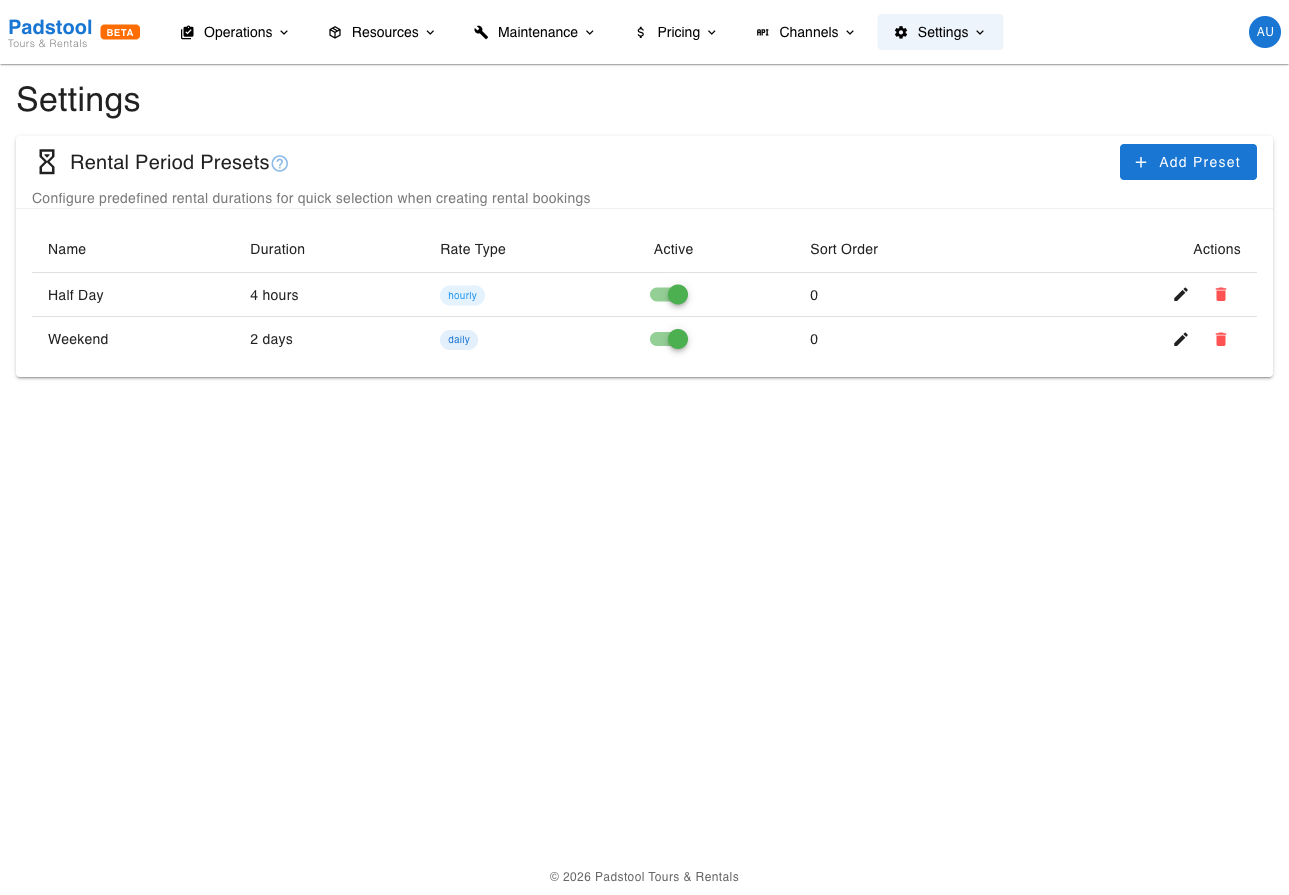
Preset list
The table shows all configured rental period presets:
| Column | What it shows |
|---|---|
| Name | The display name shown when creating rentals (e.g., "Half Day", "Weekend") |
| Duration | The length of the rental in a human-readable format (e.g., "4 hours", "2 days") |
| Rate Type | Whether the rental is priced by the hour or by the day |
| Active | Toggle to enable or disable the preset |
| Sort Order | Controls the display order (lower numbers appear first) |
Adding a preset
- Click Add Preset.
- Enter a Name for the preset.
- Select the Rate Type (hourly or daily).
- Enter the duration:
- For hourly: Enter hours and optionally minutes.
- For daily: Enter the number of days.
- Set a Sort Order to control where it appears in the list.
- Click Add.
Example: A "Half Day" preset with a 4-hour duration and hourly rate type. A "Weekend" preset with a 2-day duration and daily rate type.
Rate types
The rate type determines how the rental price is calculated based on your rental pricing configuration:
| Rate type | How pricing works | Best for |
|---|---|---|
| Hourly | Price = hourly rate x number of hours | Short rentals (1-8 hours) |
| Daily | Price = daily rate x number of days | Multi-day rentals |
Where rental periods appear
| Location | How it is used |
|---|---|
| Rental booking form | Quick-select buttons for choosing rental duration |
| Booking widget | Duration options shown to customers booking rentals online |
Tips
- Create presets for your most common rental durations to speed up the booking process for walk-in customers.
- Order presets from shortest to longest duration for a natural selection flow.
- Use descriptive names that customers understand (e.g., "Half Day" rather than "4 Hours") - these names appear in the booking widget.
- The hourly rate type works well for short rentals under 8 hours. For anything longer, the daily rate type is usually more straightforward.
- Disable seasonal presets (e.g., "Full Week") when they are not relevant rather than deleting them, so you can re-enable them next season.