
Appearance
Seasonal Rates
Seasonal rates automatically adjust your prices based on date ranges, letting you charge more during peak seasons and offer discounts during quieter periods.
When to use seasonal rates
Seasonal rates are ideal for:
- Peak seasons - Increase prices during high-demand months (e.g., summer tourism season).
- Off-peak periods - Lower prices to attract bookings during slow months (e.g., winter).
- Festivals and holidays - Apply special pricing around local events (e.g., Hafengeburtstag, Christmas markets).
- Short promotions - Run limited-time pricing for a specific week or weekend.
How to create a seasonal rate
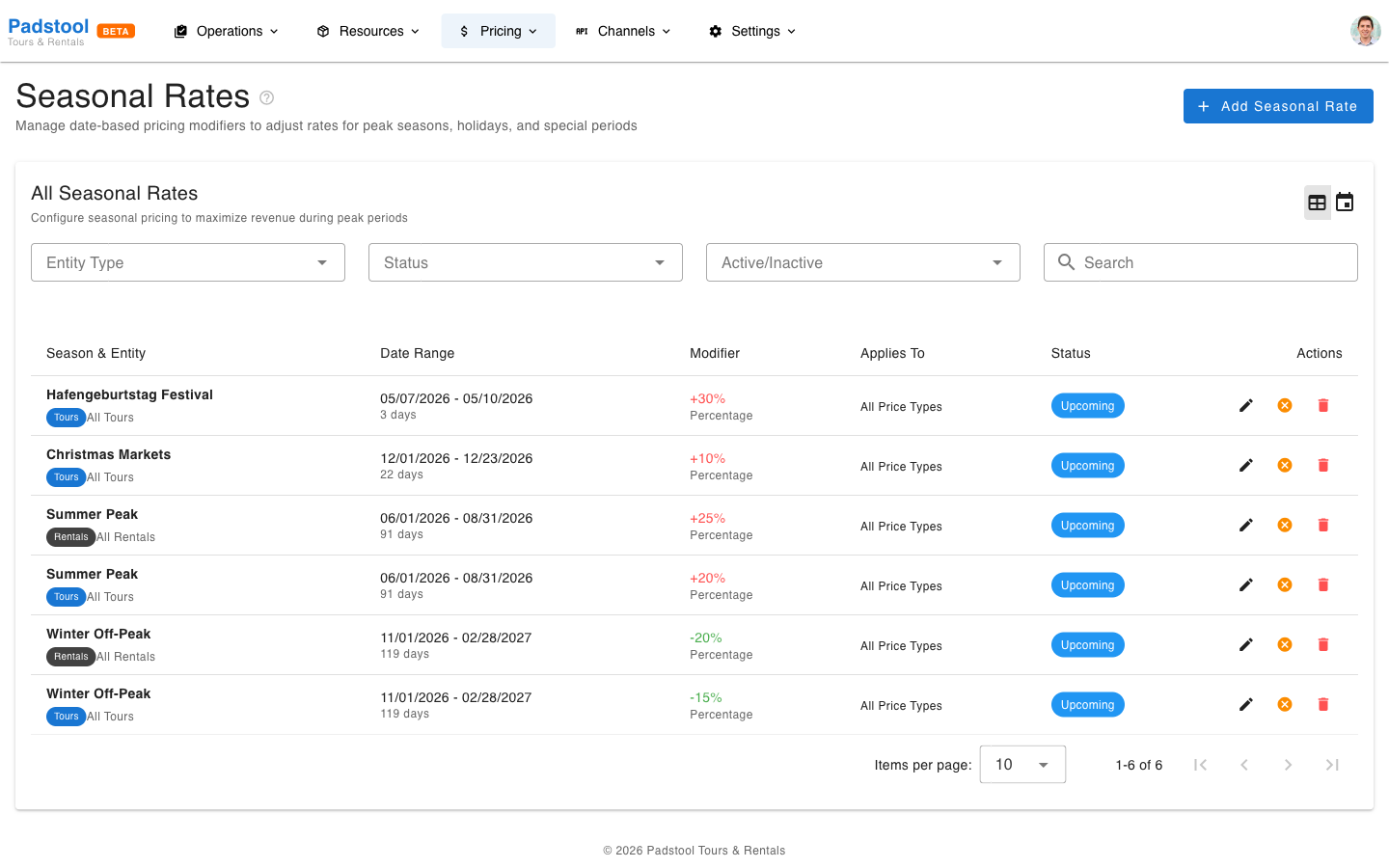
- Navigate to Pricing > Seasonal Rates.
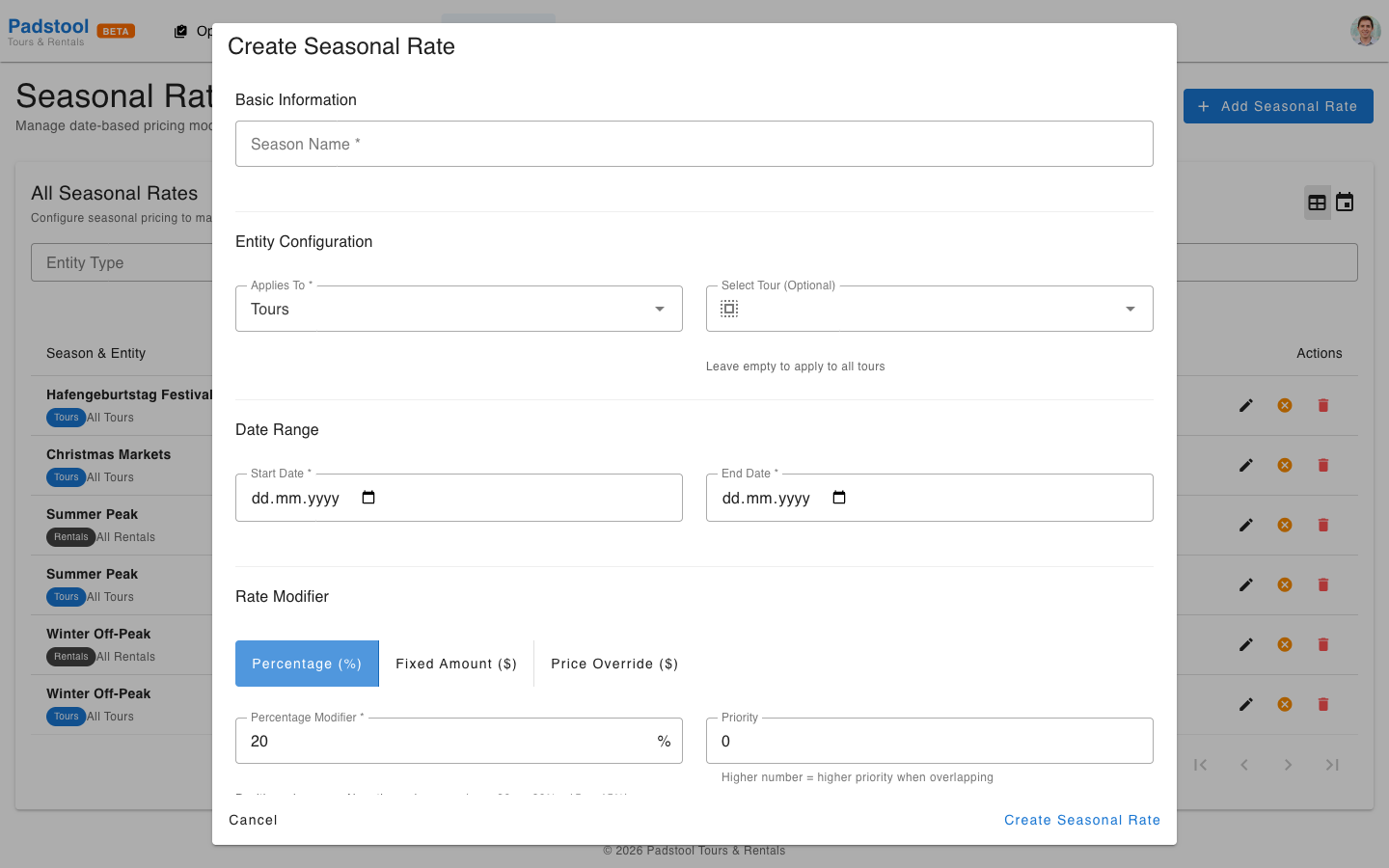
- Click Add Seasonal Rate.
- Fill in the details:
- Season name - A descriptive label (e.g., "Summer Peak", "Winter Off-Peak").
- Entity type - Whether this rate applies to tours, rentals, or both.
- Start date / End date - The date range when this rate is active.
- Modifier type - Percentage adjustment.
- Rate modifier - The percentage to add or subtract. Use a positive number to increase prices (e.g., +20%) or a negative number to decrease them (e.g., -15%).
- Priority - A number that determines which rate wins when date ranges overlap (higher number = higher priority).
- Click Save.
How priority works
When a booking date falls within multiple seasonal rates, the rate with the highest priority number takes precedence.
Example: Hamburg Bike Tours has these seasonal rates configured:
| Season | Date Range | Modifier | Priority |
|---|---|---|---|
| Summer Peak | June 1 - Aug 31 | +20% | 1 |
| Hafengeburtstag Festival | May 7 - May 10 | +30% | 2 |
| Winter Off-Peak | Nov 1 - Feb 28 | -15% | 1 |
| Christmas Markets | Dec 1 - Dec 23 | +10% | 2 |
- A booking on July 15 gets the Summer Peak rate (+20%) because it only falls within one range.
- A booking on December 10 falls within both Winter Off-Peak and Christmas Markets. Since Christmas Markets has priority 2 (higher than Winter Off-Peak at priority 1), the +10% modifier applies - not the -15%.
- A booking on February 5 gets the Winter Off-Peak rate (-15%) because Christmas Markets has ended.
WARNING
Without the priority system, overlapping date ranges would create ambiguity. Always set a higher priority for more specific or narrower date ranges (like a festival week) compared to broader seasons.
Real-world pricing examples
Here is how seasonal rates affect a €35.00 adult ticket for the Speicherstadt Heritage Tour:
| Season | Modifier | Adjusted Price |
|---|---|---|
| Summer Peak | +20% | €42.00 |
| Hafengeburtstag Festival | +30% | €45.50 |
| Winter Off-Peak | -15% | €29.75 |
| Christmas Markets | +10% | €38.50 |
| No seasonal rate active | - | €35.00 |
Managing seasonal rates
- Edit - Click on any seasonal rate in the list to update its dates, modifier, or priority.
- Deactivate - Toggle a rate to inactive without deleting it. Useful for pausing a rate you plan to reuse next year.
- Delete - Remove a rate permanently if it is no longer needed.
- Calendar view - Switch to the calendar view using the toggle buttons (table and calendar icons) in the top-right corner. The calendar visualizes all seasonal rate periods as colored blocks, making it easy to spot overlaps, gaps, and coverage at a glance.
- Filter - Use the entity type filter to show only tour or rental rates.
TIP
Use the calendar view when planning your seasonal pricing. It makes overlapping date ranges immediately visible, so you can verify that your priority settings are correct before the season starts.
Tips
- Plan your seasonal rates before each season starts so pricing is ready when bookings open.
- Use the priority field to handle overlapping date ranges cleanly. Give narrow event-specific rates a higher priority than broad seasonal rates.
- Create separate rates for tours and rentals if you want different adjustments - for example, a 20% summer increase for tours and a 25% increase for rentals.
- Review your rates at least quarterly to ensure they reflect current demand patterns.
- Test your pricing by checking the calculated total on a booking within the target date range.
TIP
Seasonal rates apply to the base price before group discounts and discount codes. This means a 20% seasonal increase followed by a 10% group discount results in a net 8% increase, not 10%. See the pricing overview for the full calculation order.