
Appearance
My Schedule
The Schedule page gives a guide a full calendar view of all their assigned tours. Navigate here from the sidebar under My Schedule.
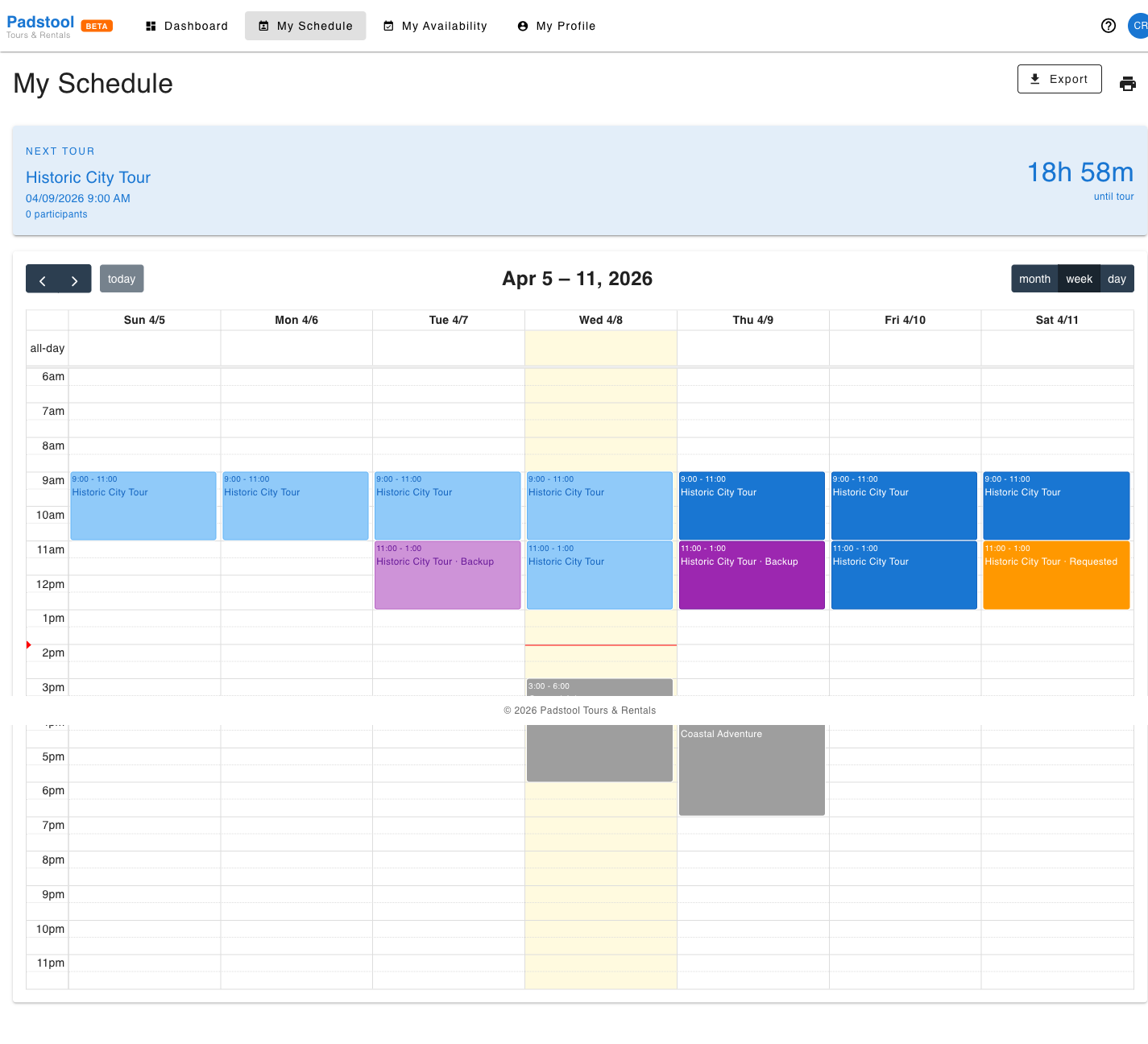
Next Tour highlight
If there is an upcoming tour, a banner at the top shows the tour name, option (if any), date/time, participant count, and a live countdown. This mirrors the dashboard card but stays visible while browsing the calendar.
Calendar
The main calendar is powered by FullCalendar and shows all tours the guide is assigned to as the primary guide or as a backup.
- Each event shows the tour name, start/end time, and participant count.
- Clicking an event opens a detail popup with full schedule information.
- Navigate between months using the arrow controls at the top of the calendar.
Events are colour-coded by the guide's role on that schedule:
| Colour | Meaning |
|---|---|
| Blue | Assigned — the guide is the primary guide for this tour |
| Purple | Backup — the guide is assigned as backup |
| Orange | Requested — the guide has requested this shift, awaiting admin approval |
| Grey | Open shift — unassigned schedule the guide can request to join as guide or backup |
Event popups
Clicking any event on the calendar opens a popup with more detail. The content varies depending on the event type.
Assigned tour
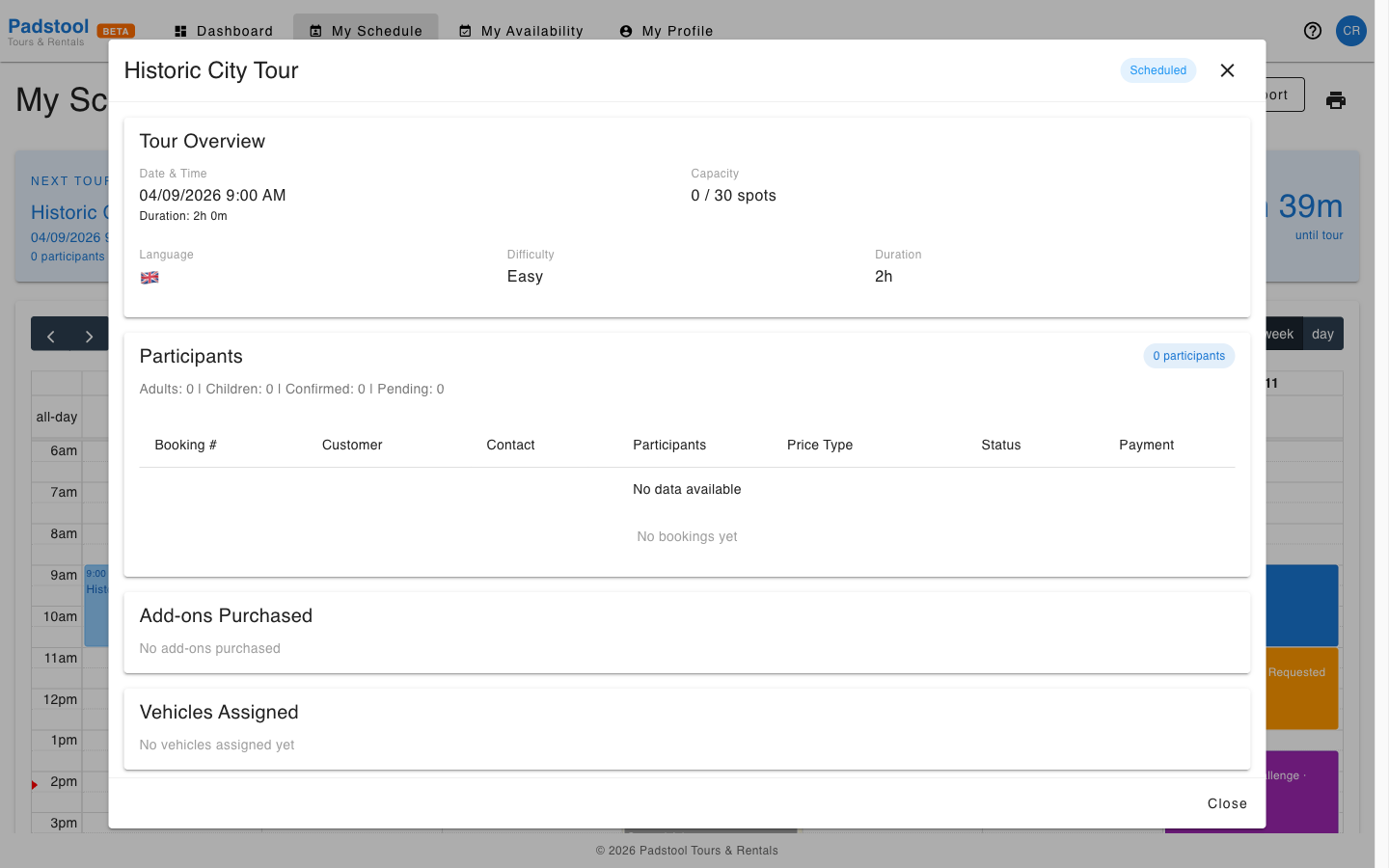
Shown when you are the primary guide for the schedule. The popup displays:
- Date, time, duration, capacity, language, and difficulty
- Participant breakdown (adults, children, confirmed, pending) with a full booking table
- Add-ons purchased by participants
- Vehicles assigned to the tour
Backup — with auto-assignment
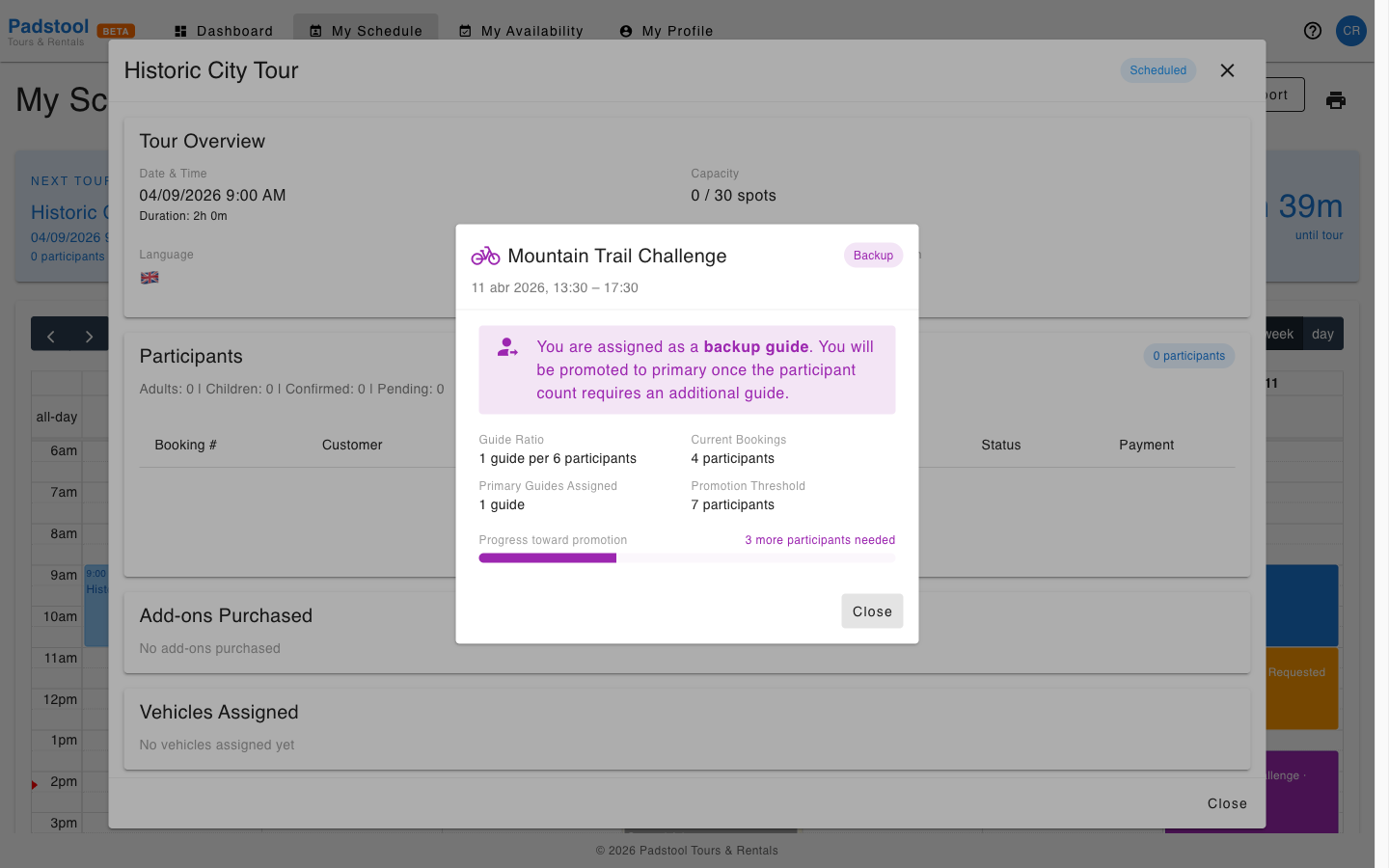
Shown when you are a backup guide on a tour that has a guide ratio configured (e.g. Mountain Trail Challenge). The popup shows:
- A note that you are assigned as backup and will be promoted to primary automatically once the participant count requires an additional guide
- Guide ratio (e.g. 1 guide per 6 participants)
- Current bookings vs. the promotion threshold
- A progress bar showing how many more participants are needed before you are promoted
Backup — without auto-assignment
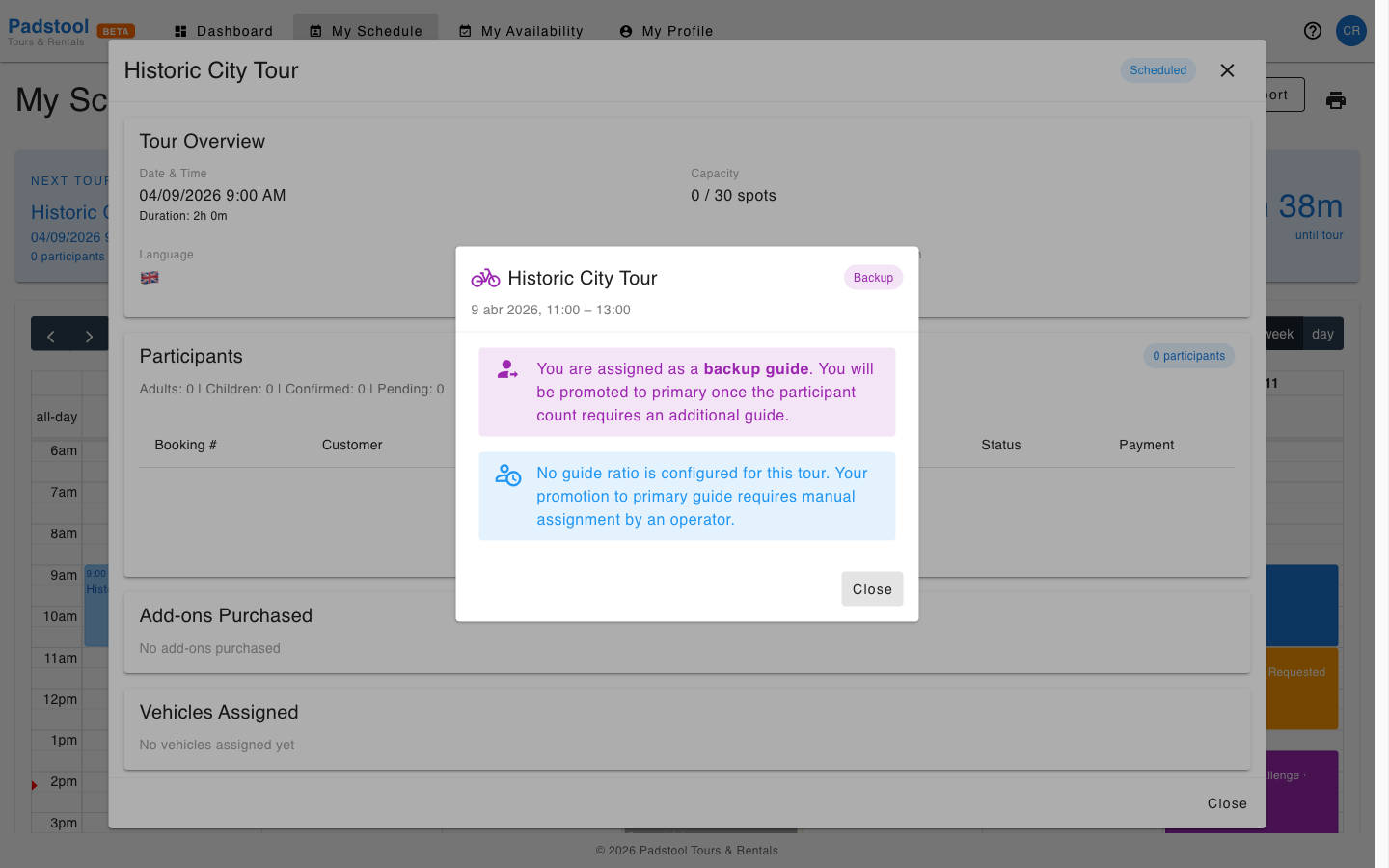
Shown when you are a backup guide on a tour with no guide ratio configured (e.g. Historic City Tour). The popup shows:
- A note that you are assigned as backup
- A notice that no guide ratio is set, so promotion to primary requires manual assignment by an operator
Requested shift
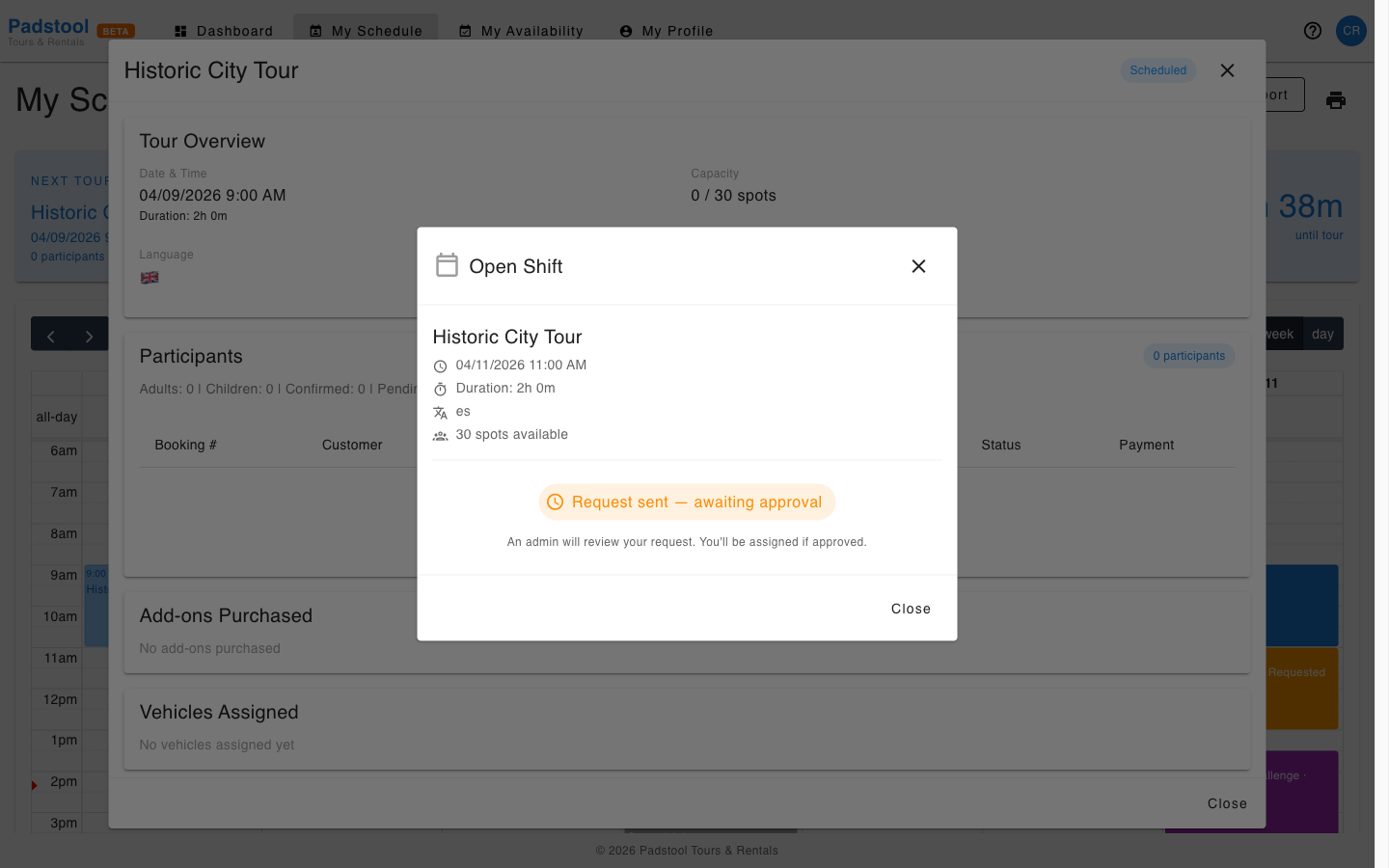
Shown when you have submitted a request for an open shift that is still awaiting admin approval. The popup shows the tour details and a "Request sent — awaiting approval" status. No action is available until an admin approves or rejects the request.
Open shift
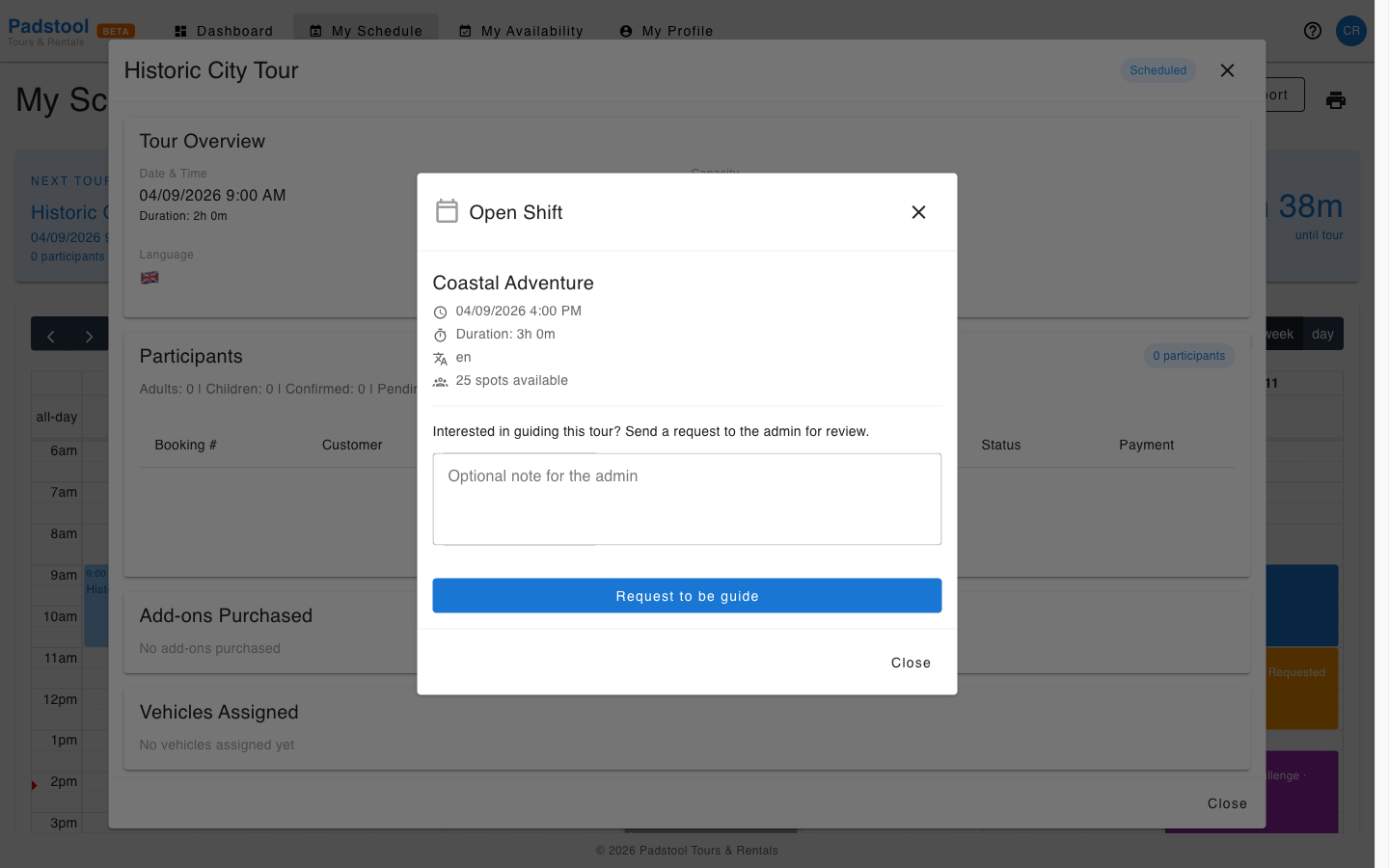
Shown for unassigned schedules that you can apply for. The popup shows:
- Tour name, date, duration, language, and available spots
- An optional note field to include a message for the admin
- A Request to be guide button to submit your application
Once submitted, the event turns orange (Requested) and the popup switches to the awaiting approval state.
Mobile view
On mobile, guides can switch between a List view and a Calendar view using the toggle above the calendar. The list view is easier to scan on a small screen — it shows all upcoming tours in chronological order.
Export and print
Two actions are available in the top-right of the page:
- Export (calendar icon) — Downloads an
.icsfile or generates a calendar subscription link. Guides can subscribe in Apple Calendar, Google Calendar, or Outlook so their tour schedule syncs automatically. See Calendar Subscription for details on how subscription links work. - Print (printer icon) — Opens the browser print dialog with the current calendar view formatted for print.
TIP
Encourage guides to subscribe to their calendar feed rather than checking the portal manually. Assignments and cancellations will appear on their personal calendar automatically.