
Appearance
Guide Assignments
Guide assignments are managed directly from the Availability Calendar. Click any tour card to open the schedule details, then use the Manage Guides button to assign or unassign guides for that departure.
Navigate to Operations > Availability to open the calendar.
Opening a schedule
The calendar shows all tour departures for the month. Tours that have no guide assigned are highlighted with a "No guide" warning in orange.
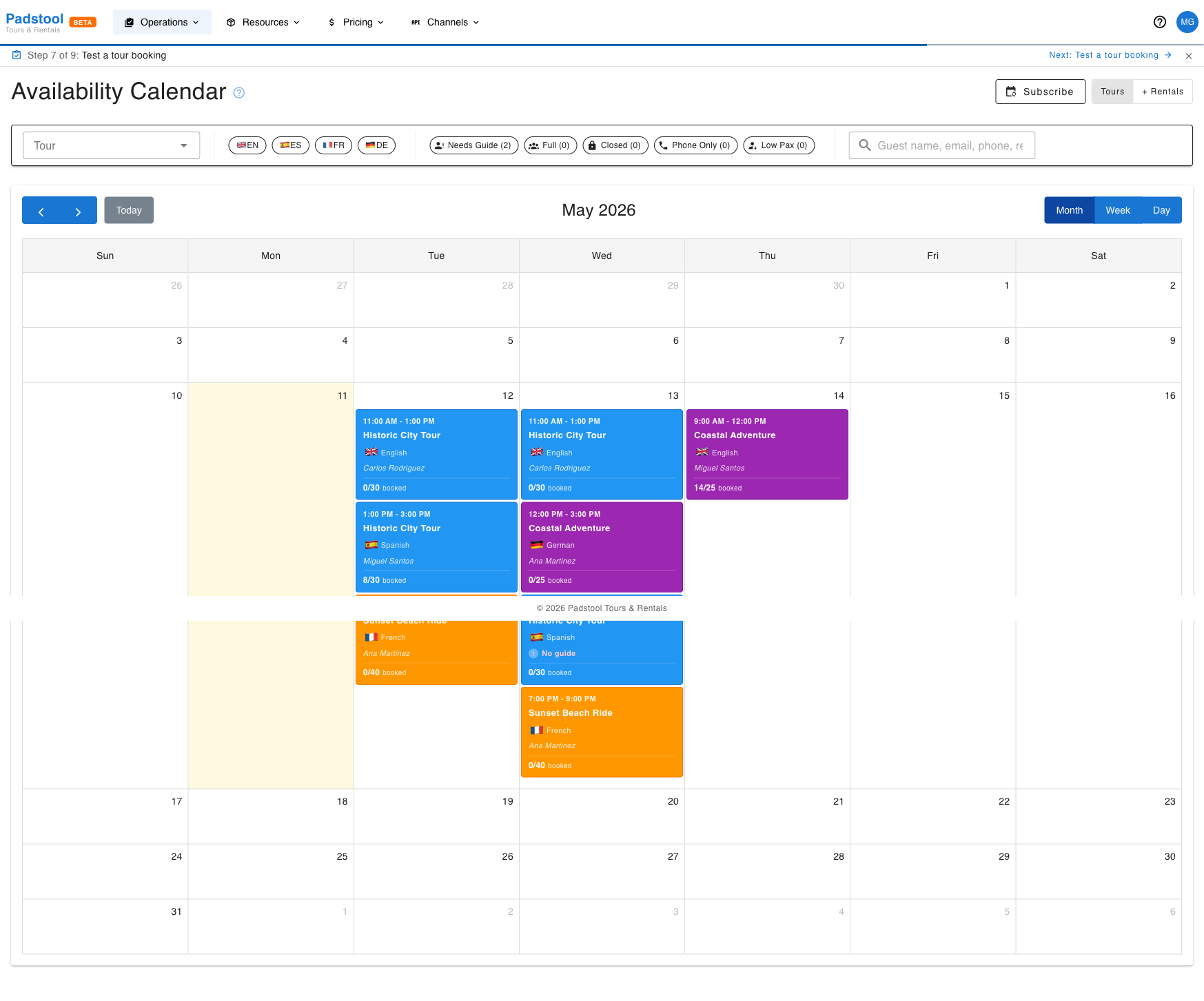
Click any tour card to open the Tour Schedule Details panel. This shows the tour name, date, time, language, pricing, booking count, and the current guide assignment status.
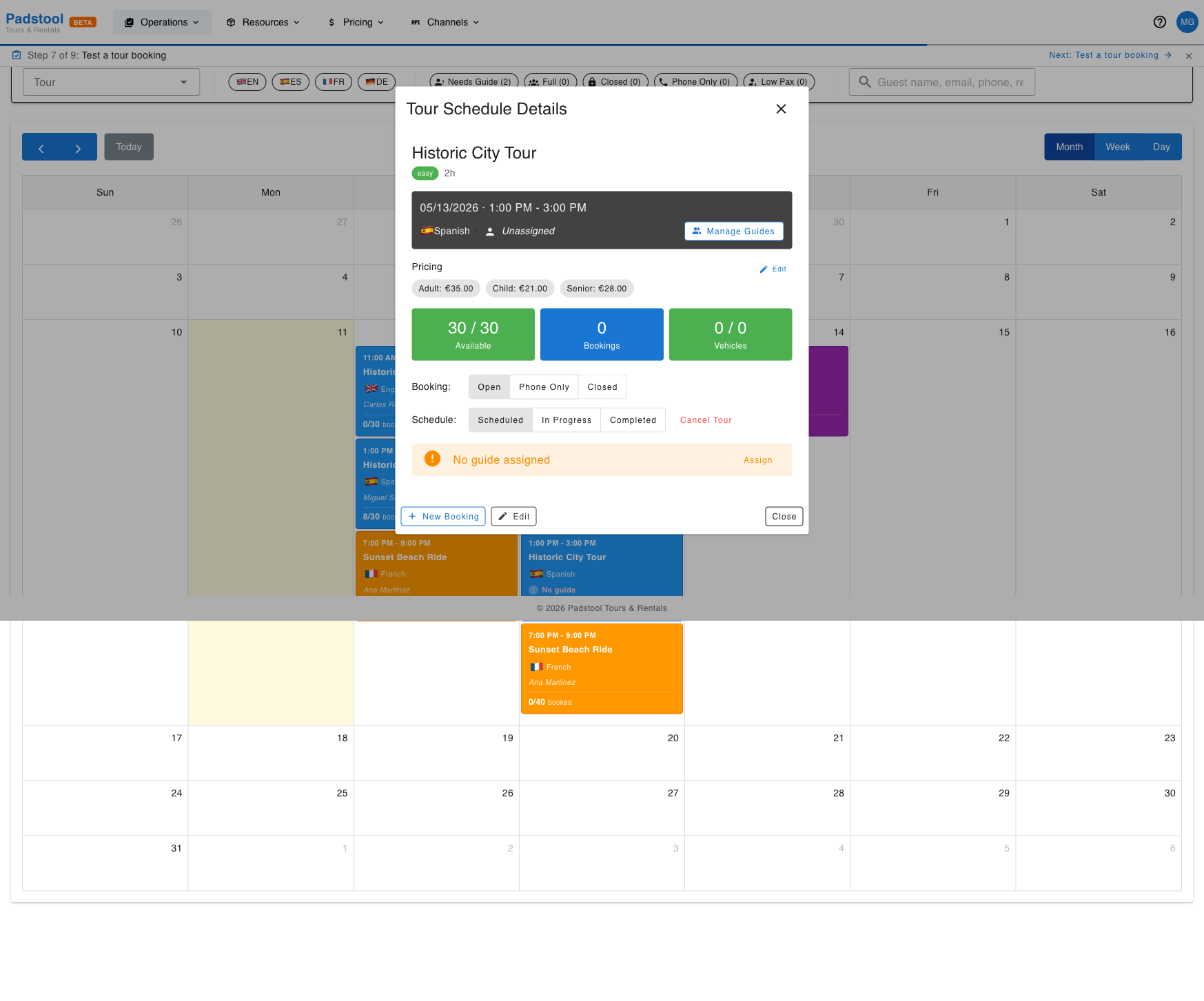
If no guide is assigned, a warning banner appears at the bottom of the card. You can click Assign in that banner, or click the Manage Guides button next to the guide assignment row.
Managing guides
Clicking Manage Guides opens the guide assignment panel for that schedule.
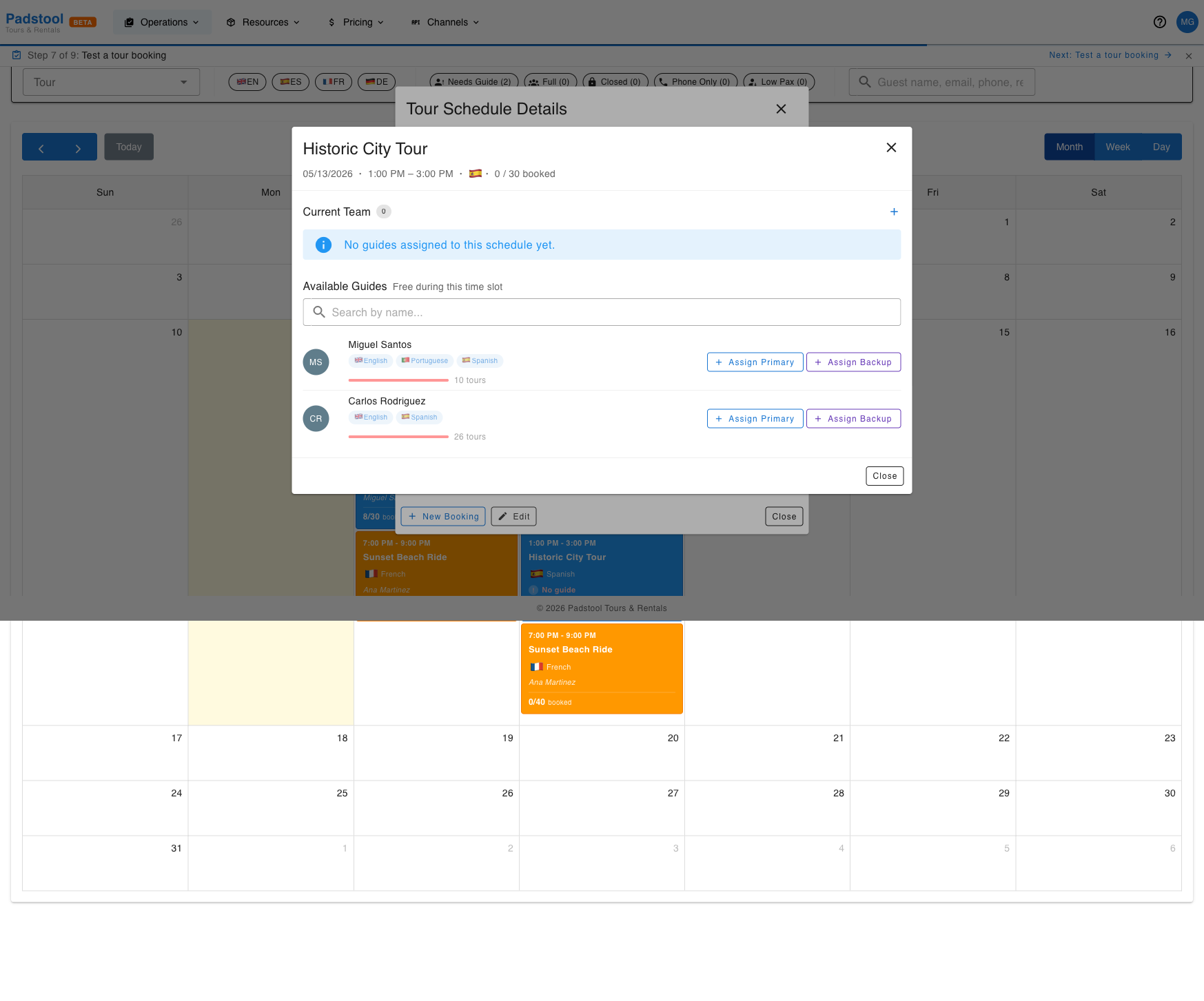
The panel has two sections:
Current Team
Shows all guides currently assigned to this schedule. Each guide entry shows their name, languages, and role (Primary or Backup).
- Click the + button in the top-right of the section to add a guide manually.
- To remove a guide, use the unassign option next to their name.
Available Guides
Lists all guides who are free during this time slot, automatically filtered by availability. Each guide shows:
- Name and languages they speak
- Workload bar — a visual indicator of how many tours they already have scheduled. A longer red bar means they are more heavily loaded.
- + Assign Primary — assigns the guide as the main guide for this departure
- + Assign Backup — assigns the guide as a backup (standby) who only steps in if needed
Use the Search by name field to find a specific guide quickly.
How to assign a guide
- Open the Availability Calendar from Operations > Availability.
- Click the tour card you want to staff.
- Click Manage Guides in the schedule details panel.
- Find the guide you want in the Available Guides list.
- Click + Assign Primary or + Assign Backup.
The guide is assigned immediately and appears in the Current Team section.
How to unassign a guide
- Open the schedule card and click Manage Guides.
- In the Current Team section, click the unassign option next to the guide's name.
Primary vs Backup guides
| Role | Meaning |
|---|---|
| Primary | The guide responsible for running the tour. Appears in the manifest and is counted toward staffing. |
| Backup | Standby — assigned to the schedule in advance but not responsible unless promoted. |
How backup guides work
A backup guide is your safety net. You assign them to the schedule ahead of time — they are committed to being available — but they are not the running guide until something changes.
Notification: A backup guide receives the same assignment email as a primary guide the moment they are assigned. The email does not distinguish between roles — the guide is simply notified they are on the schedule.
What backup guides do NOT do:
- They do not appear in the manifest check-in view. Only primary guides have a group of participants assigned to them.
- They do not count toward the staffing level. A schedule with one primary and one backup shows as needing guides if the tour ratio requires two primaries.
What happens when a primary drops out:
If a primary guide can no longer run the tour, an operator can manually promote the backup to primary directly from the Manage Guides panel. Once promoted, the guide becomes a full primary — they appear in the manifest and their participants can be assigned.
Auto-promotion:
If the schedule uses auto-assign, the system will automatically promote backup guides to primary when it detects the schedule is understaffed. Backup guides are promoted first (before looking at the general guide pool), in the order they were assigned — oldest first. This means adding a backup is a way to give a specific guide priority for auto-assignment if a slot opens up.
Staffing status on the calendar
Tour cards on the calendar use colour and a guide name to signal staffing status at a glance:
| What you see on the card | Meaning |
|---|---|
| Guide name in italic | Assigned and staffed |
| ! No guide in orange | No guide assigned — needs attention |
Tips
- Filter the calendar by Needs Guide to immediately see only tours that still need staffing.
- The workload bar next to each guide helps you distribute tours evenly — avoid assigning guides whose bar is already full.
- Backup guides are invisible to the manifest check-in flow. Only assign backup when you genuinely need a standby.