
Appearance
Organization Settings
Organization settings store your company's basic information - the name, contact details, and address that appear across the platform, in customer emails, and in the booking widget.
How to update your organization
- Navigate to Settings > Organization.
- Update any of the fields described below.
- Click Save.
Changes take effect immediately for all new communications and booking widget displays.
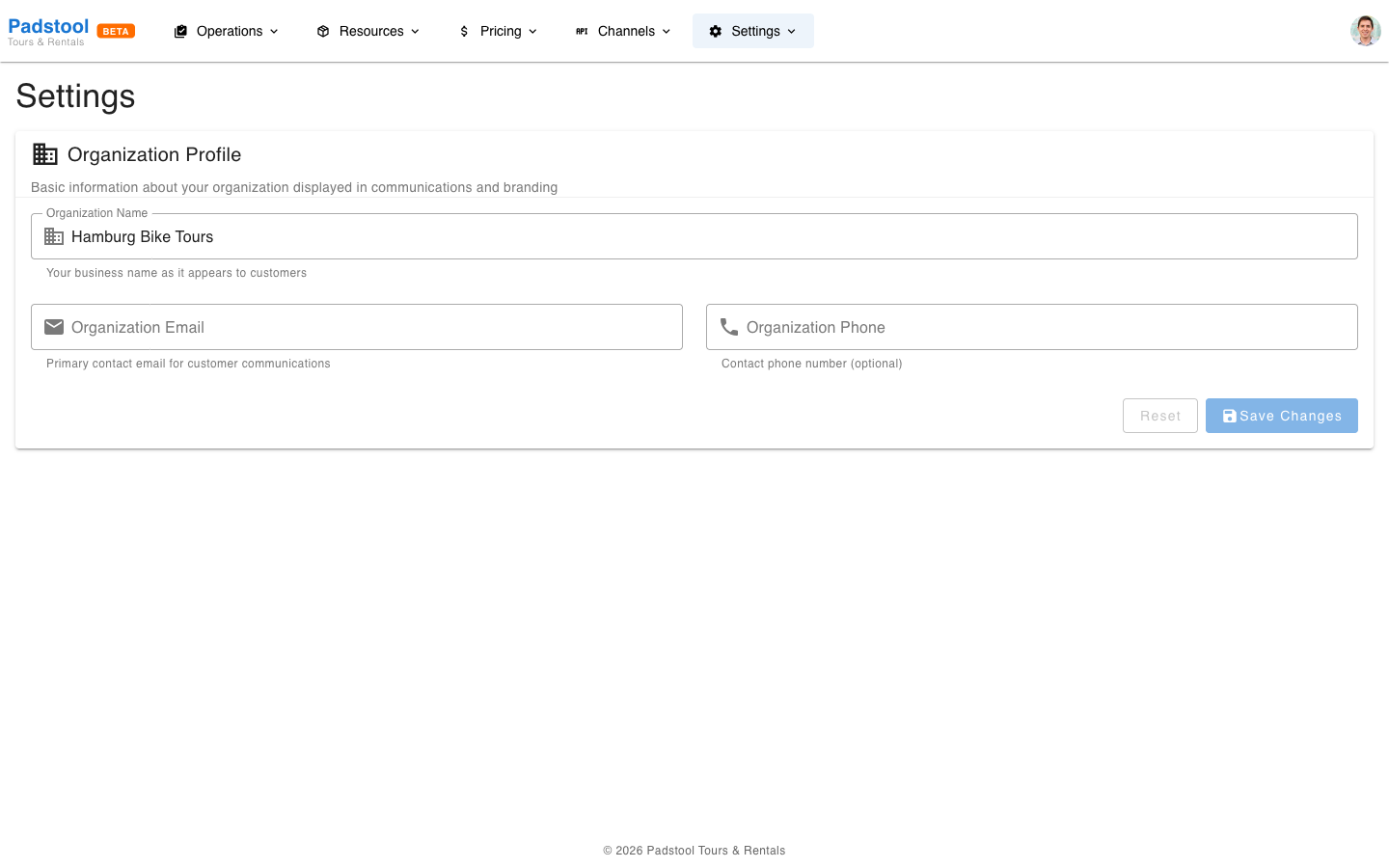
Fields
Company name
Your business name, displayed in:
- Email headers and footers (booking confirmations, payment receipts, reminders).
- The booking widget header that customers see.
- Guide notification emails.
Example: Hamburg Bike Tours
Contact email
The email address where customer inquiries are directed. This appears in booking confirmation emails and the booking widget so customers know how to reach you.
Use a shared inbox (e.g., info@hamburgbiketours.com) rather than a personal email so multiple team members can respond to customer questions.
Example: info@hamburgbiketours.com
Contact phone
Your business phone number, displayed to customers in emails and the booking widget. Use international format so customers from any country can reach you.
Example: +49 40 123 456
Address
Your business location. This appears on payment receipts and in customer-facing emails. Enter the full street address including city, postal code, and country for clarity.
Example: Grosse Elbstrasse 212, 22767 Hamburg, Germany
Website
A link to your main business website. This can be included in emails and the booking widget to direct customers to additional information about your tours and services.
Example: https://hamburgbiketours.com
Where this information appears
Your organization details are used throughout the platform:
| Location | What is shown |
|---|---|
| Booking confirmation emails | Company name, contact email, phone, address |
| Payment receipts | Company name, address |
| Booking widget | Company name, contact details |
| Guide notifications | Company name |
| Reminder emails | Company name, contact details for customer questions |
When to update
Update these settings when:
- You rebrand or change your company name.
- You move to a new location.
- You change your contact email or phone number.
- You launch or change your website.
INFO
Changes apply to all new emails and widget displays immediately. Previously sent emails are not retroactively updated.
Tips
- Use a general inbox for the contact email (e.g., info@ or bookings@) rather than a personal email address. This ensures inquiries are handled even when one person is unavailable.
- Keep the phone number in international format (with country code) so visitors from abroad can call without confusion.
- Enter a complete address including country - your customers may be international and unfamiliar with your city's postal conventions.
- Review this page at least once a year or whenever your business details change. Outdated contact information leads to missed customer inquiries.
- If you operate from multiple locations, use your primary booking location as the address and note additional locations in your website or tour descriptions.