
Appearance
Regional Settings
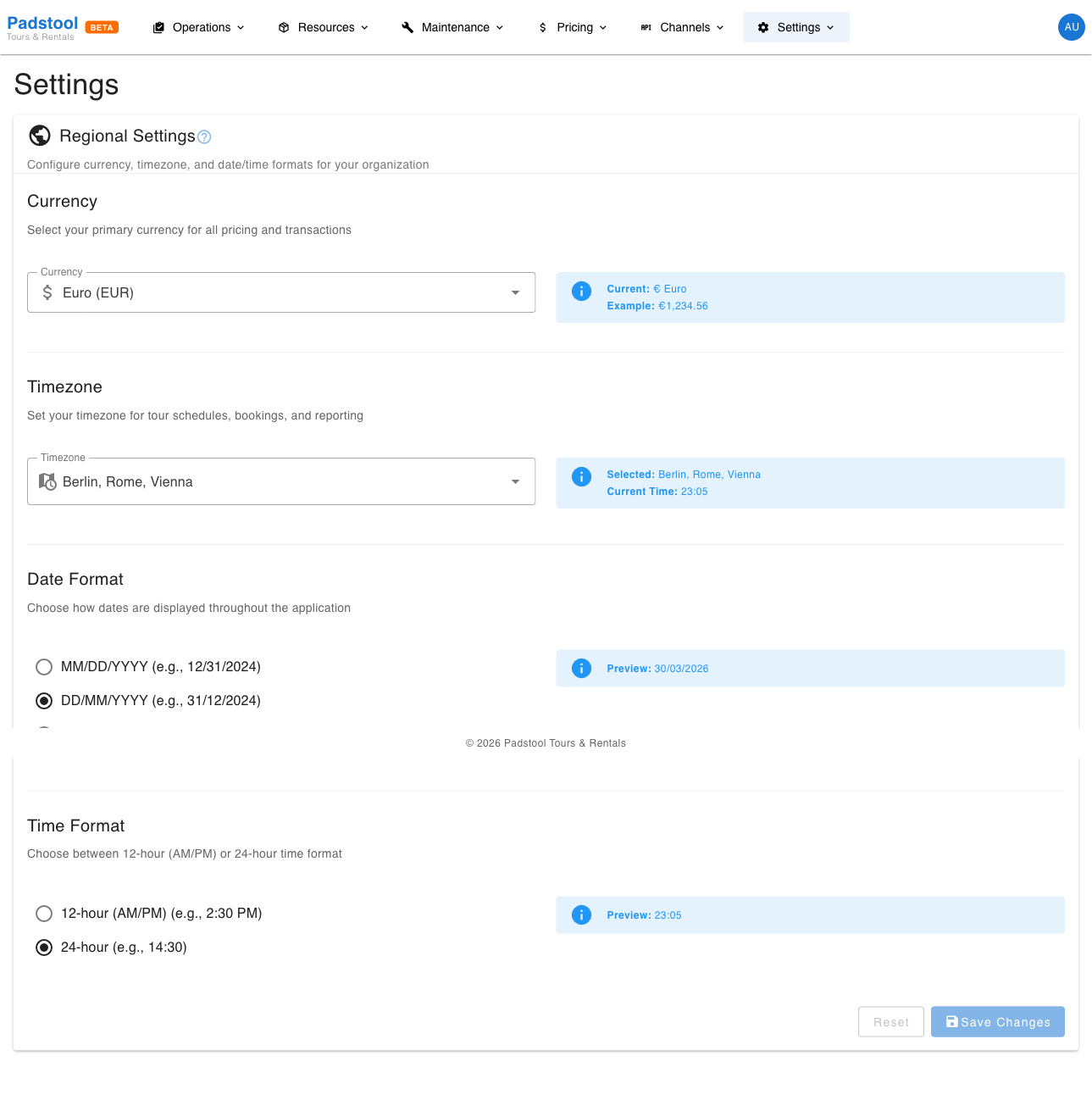
Regional settings configure the currency, timezone, and date/time display formats used across the platform - from pricing to schedule times to booking confirmations.
How to configure regional settings
- Navigate to Settings > Regional.
- Select your currency, timezone, and preferred date/time formats.
- Click Save Changes.
Changes take effect immediately for all new displays and communications.
Currency
Select the currency used for all pricing, transactions, and financial displays:
| Setting | What it controls | Example |
|---|---|---|
| Currency | The currency for all prices, payments, and financial reports | EUR (Euro) |
The selected currency applies to:
- Tour and rental pricing throughout the admin interface.
- Customer-facing booking widget prices.
- Payment processing via Stripe.
- Booking confirmation and payment receipt emails.
A preview below the selector shows the currency symbol, name, and a formatted example (e.g., "EUR 1,234.56").
WARNING
Changing the currency does not convert existing prices. If you switch from EUR to USD, a tour priced at 50 remains 50 - but it will now display as $50.00 instead of EUR 50.00. Review all your tour pricing and rental pricing after a currency change.
Timezone
Set the timezone for tour schedules, booking times, and reporting:
| Setting | What it controls | Example |
|---|---|---|
| Timezone | The timezone used for all dates and times in the platform | Europe/Berlin (UTC+2) |
The timezone affects:
- Tour schedule start and end times.
- Booking timestamps and confirmation emails.
- Operating hours enforcement.
- Dashboard reports and analytics.
- Minimum participants alerts timing.
A preview shows the current time in your selected timezone so you can verify it is correct.
WARNING
Changing the timezone does not modify existing schedule times. A tour scheduled for 10:00 will still show as 10:00 after the change. Only set the timezone when you first configure the platform, or if your business physically relocates.
Date format
Choose how dates are displayed throughout the application:
| Format | Example |
|---|---|
| MM/DD/YYYY | 03/30/2026 |
| DD/MM/YYYY | 30/03/2026 |
| YYYY-MM-DD | 2026-03-30 |
Select the format that matches your regional convention. European operators typically use DD/MM/YYYY, while US operators use MM/DD/YYYY.
Time format
Choose between 12-hour and 24-hour time display:
| Format | Example |
|---|---|
| 12-hour | 2:30 PM |
| 24-hour | 14:30 |
This affects how times are displayed in tour schedules, booking details, and throughout the admin interface.
Tips
- Set regional settings before configuring tours and pricing. Getting the currency and timezone right from the start avoids confusion later.
- Use the DD/MM/YYYY date format if your customers are primarily European, or MM/DD/YYYY for a US audience. The YYYY-MM-DD (ISO) format is unambiguous for international operations.
- The 24-hour time format avoids AM/PM confusion for tour schedules, especially if you operate evening tours.
- If you operate in a timezone that observes daylight saving time, the platform handles the clock changes automatically - just select the correct timezone name (e.g., "Europe/Berlin" rather than "UTC+1").