
Appearance
Bookings
Bookings are the central record of customer reservations for tours and rentals - every booking tracks the customer, participants, pricing, payment, and status.
Viewing bookings
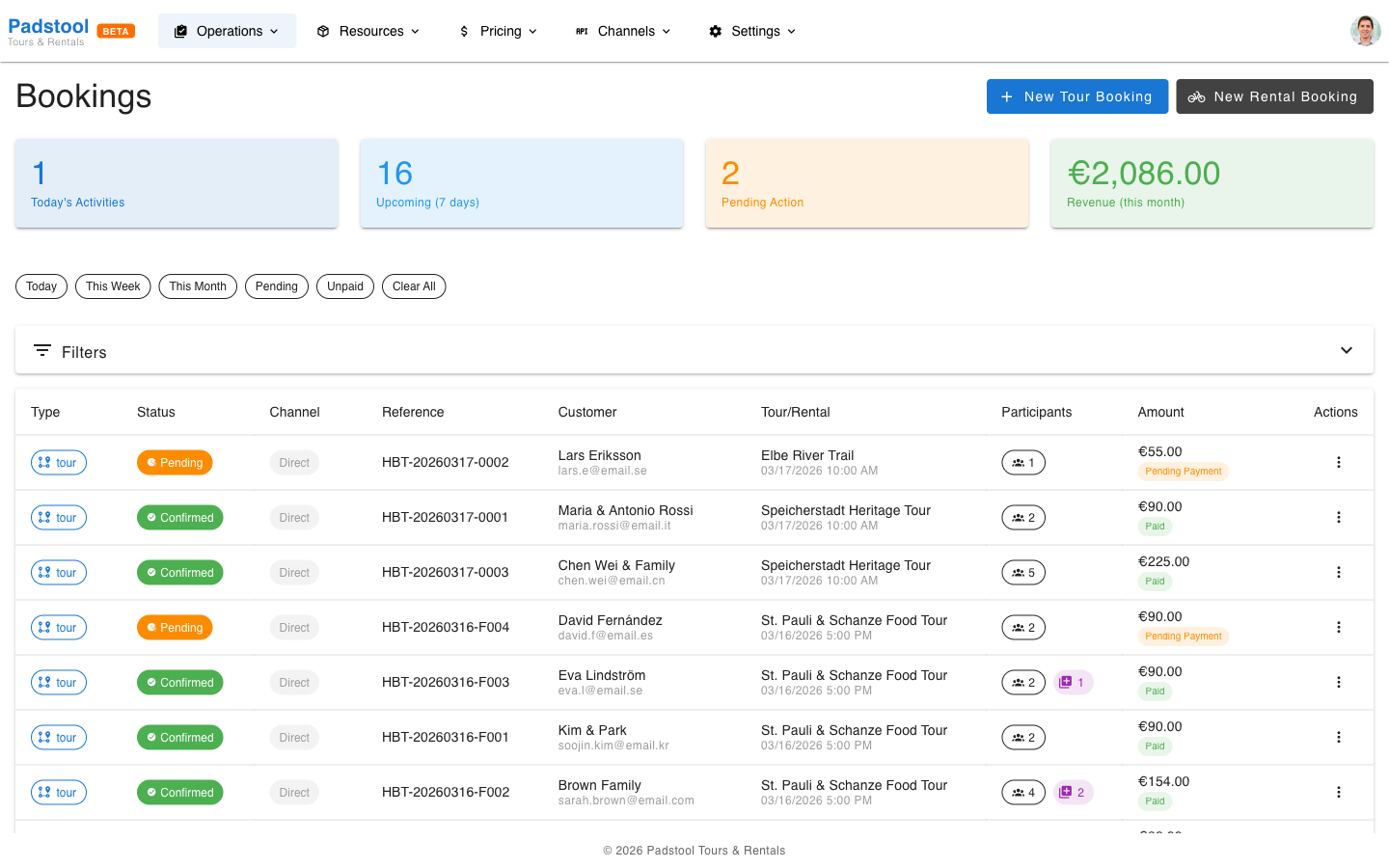
Navigate to Operations > Bookings. The page shows summary stats at the top and a filterable list below.
Summary cards show:
- Today's activities
- Upcoming bookings (next 7 days)
- Total revenue
- Pending bookings that need attention
Quick filter presets
At the top of the list, a row of chip buttons lets you apply common filters with one click:
- Today - Show today's activities.
- This Week - Show the current week (Monday to Sunday).
- This Month - Show the current calendar month.
- Pending - Show only pending bookings.
- Unpaid - Show bookings with pending payment.
- Clear All - Reset all filters.
TIP
The quick filter presets are the fastest way to focus on what needs attention. Click Pending first thing in the morning to see bookings that need follow-up.
Advanced filters
Expand the Filters panel for more options:
- Status - Filter by confirmed, pending, in progress, completed, or cancelled.
- Type - Filter by tour or rental bookings.
- Payment Status - Filter by paid, pending, processing, failed, refunded, or partially refunded.
- Channel - Filter by booking source (direct, OTA channels).
- Date range - Show bookings for specific dates, with a toggle between Activity Date and Booking Date.
- Search - Find bookings by customer name, email, phone, or booking reference.
Booking lifecycle
Every booking moves through these statuses:
| Status | Meaning | Next steps |
|---|---|---|
| Pending | Created but not yet paid or confirmed | Await payment or manually confirm |
| Confirmed | Payment received, booking is secured | Tour/rental takes place as scheduled |
| Completed | The tour or rental has finished | No further action needed |
| Cancelled | Booking was cancelled | Process refund if applicable |
Bookings with auto-confirm enabled (see booking policies) move directly from pending to confirmed when payment is received.
Creating a manual booking
When a customer books by phone or walks in, create a booking manually:
- Navigate to Operations > Bookings.
- Click New Tour Booking or New Rental Booking.
- Fill in:
- Customer details - Name, email, phone number.
- Tour/rental selection - For tours, pick a tour and schedule. For rentals, pick the vehicle type(s) and quantity, then set the rental duration.
- Participants - Number of adults, children, seniors (tours only).
- Add-ons - Select any applicable extras.
- Notes - Special requests or internal notes.
- Review the calculated pricing.
- Confirm the booking.
INFO
Manual bookings follow the same pricing engine as online bookings. Seasonal rates, group discounts, and add-ons are all calculated automatically.
Booking details
Click on any booking to see its full details:
- Customer information - Name, email, phone, and any notes.
- Booking items - Tour or rental details with per-participant pricing breakdown.
- Add-ons - Any extras included in the booking.
- Payment status - Whether payment has been received, is pending, or was refunded.
- Timeline - A history of status changes and actions taken on the booking.
Booking numbers
Each booking receives a unique booking number in the format HBT-YYYYMMDD-NNNN (e.g., HBT-20260716-0001). This number is:
- Shown to the customer in confirmation emails.
- Used for reference in all communications.
- Searchable in the bookings list.
Cancellation and refunds
To cancel a booking:
- Open the booking details.
- Click Cancel Booking.
- Choose the refund option:
- Full refund - Return the entire amount to the customer.
- Partial refund - Return a specific amount (e.g., less a cancellation fee).
- No refund - Cancel without refund (e.g., for no-shows or late cancellations).
- Confirm the cancellation.
Refunds are processed through Stripe and typically appear in the customer's account within 5-10 business days.
Standalone refunds
You can also process a refund without cancelling the booking. This is useful when you need to adjust the amount charged (e.g., for a service issue or pricing correction):
- Open the booking details.
- Click Process Refund (available on bookings with a paid status).
- Select Full Refund or Partial Refund and enter the amount.
- Choose a refund reason from the dropdown.
- Review the confirmation summary and click Process Refund.
The dialog shows the original payment amount, any amount already refunded, and the remaining refundable balance. Partial refunds let you issue multiple refunds against the same booking over time.
Your booking policies define the cancellation rules, including how far in advance customers can cancel and whether a fee applies.
Multi-item bookings
A single booking can include:
- Multiple participants - Different price types (e.g., 2 adults + 2 children).
- Add-ons - Optional and required extras for the booking.
- Notes - Special requests like "2 adults + 2 children" or "Anniversary trip".
The booking total reflects all items, with the full pricing engine applied.
Booking sources
Every booking has a source that identifies where it came from. This helps you track which channels generate the most bookings and revenue.
System sources are built-in and always available:
| Source | When it is used |
|---|---|
| Direct | Bookings created through your booking widget |
| Admin | Bookings created manually by an operator |
| Walk-In | Walk-in customers who book via the QR code |
| OTA | Bookings from online travel agencies (Get Your Guide, Viator, etc.) |
You can also create custom sources for your own tracking needs - for example, "Hotel Partner", "Cruise Ship", or "Corporate". Custom sources appear in the booking creation form and in the channel filter on the bookings list.
Configure booking sources under Settings > Booking Sources. Each source can be activated or deactivated without deleting it.
TIP
Use the Channel filter on the bookings list to compare performance across sources. This helps you understand which partnerships and marketing channels are driving the most business.
Tips
- Check the bookings page daily for pending bookings that may need follow-up.
- Use the status filters to focus on what needs attention - pending bookings first, then upcoming confirmed bookings.
- Add notes to bookings for special requests so guides and operators are prepared.
- Review cancelled bookings periodically to understand cancellation patterns and adjust booking policies if needed.
- The booking number is the best reference for customer communications.
TIP
For rental bookings, the next step after confirmation is the checkout process where you hand over the vehicle and document its condition.