
Appearance
Add-ons
Add-ons are optional or required extras that enhance a booking - things like helmets, photo packages, lunch stops, or GPS mounts.
Add-on pricing types
Each add-on uses one of these pricing models:
| Pricing Type | How it charges | Best for |
|---|---|---|
| Per-person | Multiplied by participant count | Consumables (lunch, water bottles) |
| Per-booking | Flat fee per booking | Shared items (photo package, GPS mount) |
Example: A lunch stop add-on at €12.00 per person on a booking with 4 participants costs €48.00. A photo package at €15.00 per booking costs €15.00 regardless of group size.
Required vs optional add-ons
- Required - Automatically included in every booking. The customer cannot remove it. Use this for safety equipment or items that are part of the standard experience.
- Optional - The customer chooses whether to include it at checkout. Use this for upgrades and extras.
Zero-price add-ons
Set the price to €0.00 for items you need to track operationally but do not charge for. The add-on still appears in booking records, which helps with:
- Inventory tracking - Know how many helmets to prepare for a tour.
- Safety compliance - Document that required safety equipment was included.
- Operations planning - Track demand for items even when they are complimentary.
Example: Hamburg Bike Tours includes a free helmet with every booking. The helmet add-on is set as required with a €0.00 price, ensuring it appears on every booking for inventory preparation.
How to create an add-on
- Navigate to Resources > Add-ons.
- Click Add Add-on.
- Fill in the details:
- Name - A clear, customer-facing label (e.g., "Photo Package", "Lunch Stop").
- Description - What the customer receives. Keep it concise - customers see this at checkout.
- Base price - The cost in your currency. Set to 0 for free items.
- Per person - Toggle on if the price should be multiplied by participant count.
- Available for tours - Toggle on to make this add-on available for tour bookings.
- Available for rentals - Toggle on to make this add-on available for rental bookings.
- Required - Toggle on to include this add-on automatically in every applicable booking.
- Click Save.
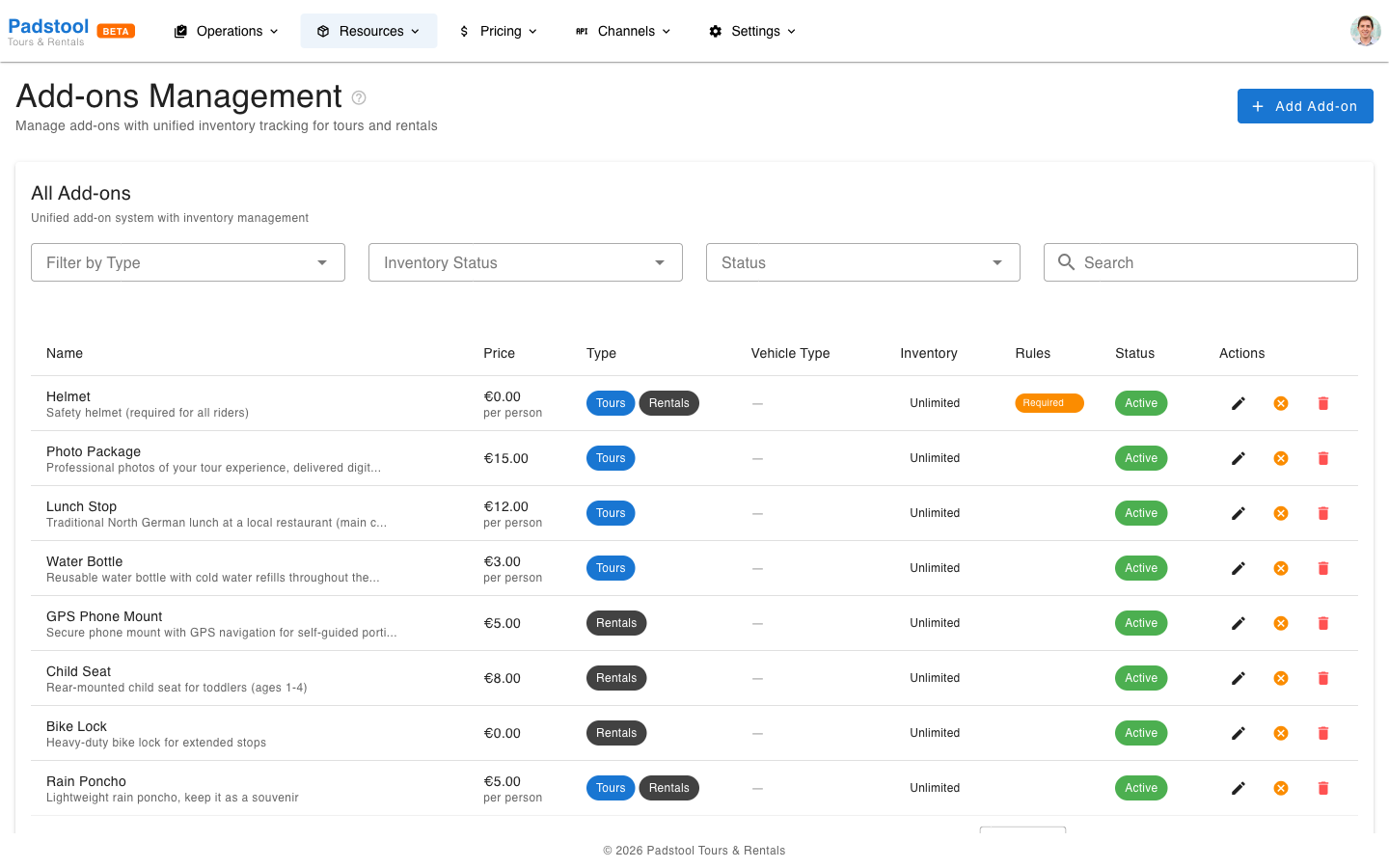
Tour vs rental add-ons
Add-ons can be configured for tours, rentals, or both:
- Tour add-ons - Appear when customers book tours. Per-person pricing is common here (e.g., lunch at €12.00 per person).
- Rental add-ons - Appear when customers rent vehicles. Per-booking pricing works well for accessories (e.g., GPS mount at €5.00 per booking).
- Both - Some add-ons apply to either booking type. For example, a rain poncho at €5.00 per person works for both tours and rentals.
Use the Filter by Type dropdown on the add-ons list to view only tour or rental add-ons.
Hamburg Bike Tours examples
| Add-on | Price | Type | Required | Available for |
|---|---|---|---|---|
| Helmet | €0.00 | Per-person | Yes | Tours & Rentals |
| Photo Package | €15.00 | Per-booking | No | Tours |
| Lunch Stop | €12.00 | Per-person | No | Tours |
| Water Bottle | €3.00 | Per-person | No | Tours |
| GPS Phone Mount | €5.00 | Per-booking | No | Rentals |
| Child Seat | €8.00 | Per-booking | No | Rentals |
| Bike Lock | €0.00 | Per-booking | No | Rentals |
| Rain Poncho | €5.00 | Per-person | No | Tours & Rentals |
Inventory management
Each add-on has an optional Inventory Management section at the bottom of the create/edit dialog:
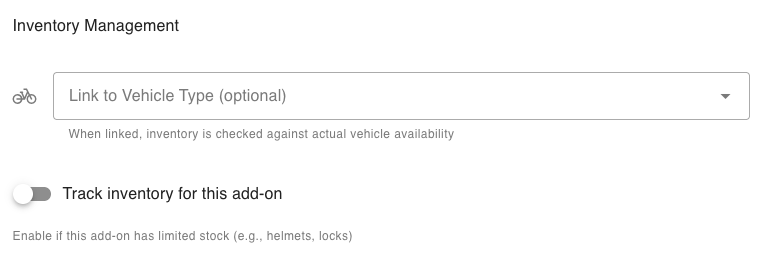
- Link to Vehicle Type - Connect the add-on to a vehicle type from your fleet (e.g., E-Bike, Tandem). When linked, the system checks real-time vehicle availability - customers can only select as many as are actually available at the time of booking.
- Track inventory - Enable manual inventory tracking for add-ons with limited stock (e.g., helmets, child seats). Set a quantity and the system prevents overbooking.
Vehicle type upsell
Linking an add-on to a vehicle type is a powerful way to upsell premium vehicles on tours. On most tours, customers are assigned a standard vehicle by default. By creating an add-on linked to a specific vehicle type, you let customers upgrade at checkout:
Example: Hamburg Bike Tours offers an "E-Bike Upgrade" add-on at €15.00 per person, linked to the E-Bike vehicle type. When a customer books the Alster Lakes & Parks tour, they can select the E-Bike Upgrade for one or more participants. The system checks how many E-Bikes are available for that time slot and limits the selection accordingly.
This approach works well because:
- Customers self-select the upgrade - no manual coordination needed.
- Availability is enforced automatically against your actual fleet.
- Revenue from upgrades is tracked as add-on revenue in your reports.
How add-ons affect the booking total
Add-ons are added after all other pricing layers (base price, seasonal rates, group discounts, and discount codes). They are always charged at their full listed price and are not affected by discounts.
Example: Alster Lakes & Parks, 4 adults at €40.00 each with Lunch Stop (€12.00/person) and Photo Package (€15.00/booking):
| Step | Calculation | Amount |
|---|---|---|
| Base price | 4 x €40.00 | €160.00 |
| Lunch Stop | 4 x €12.00 | +€48.00 |
| Photo Package | 1 x €15.00 | +€15.00 |
| Total | €223.00 |
Tips
- Use required add-ons with €0.00 price for items you need to track but do not charge for (helmets, locks).
- Keep descriptions clear and concise - customers see these during checkout and need to understand what they are getting.
- Choose the right pricing type: per-person for consumables everyone needs (lunch, water), per-booking for shared items or accessories (photo package, GPS mount).
- Review add-on uptake periodically. If an optional add-on is rarely selected, consider adjusting the price or description to make it more appealing.
- Add-ons are not affected by seasonal rates, group discounts, or discount codes. See the pricing overview for how add-ons fit into the full calculation.
TIP
Use the vehicle type linking feature to create upsell add-ons for premium vehicles. This is the easiest way to offer E-Bike or Tandem upgrades on tours without manual coordination.