
Appearance
Guide Management
Guide management handles your team of tour guides - their profiles, skills, languages, certifications, and availability for tour assignments.
Viewing your guides
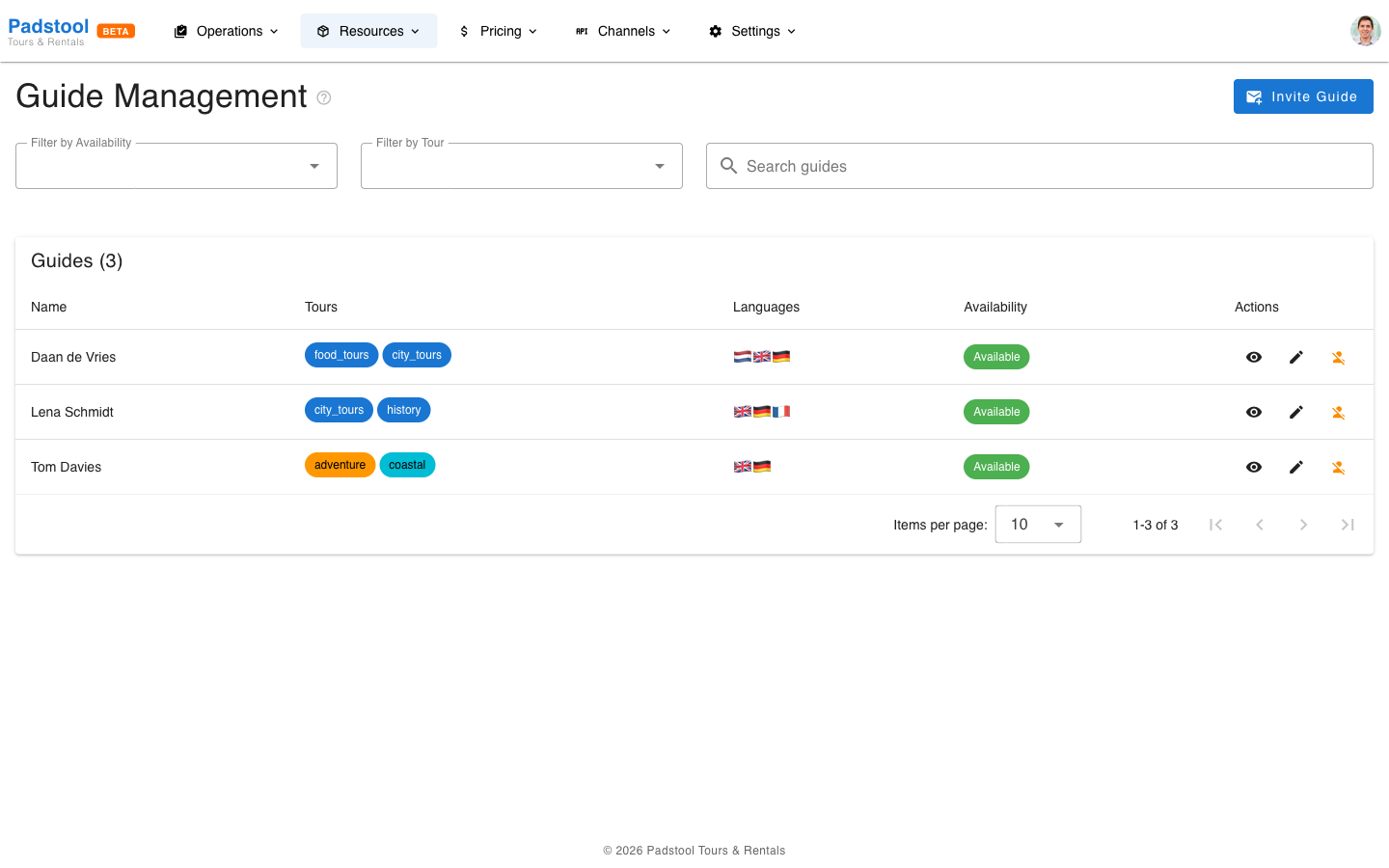
Navigate to Resources > Guides. The list shows each guide's name, specializations, languages, and current availability status.
Use the filters to find specific guides:
- Filter by Availability - Show only currently available or unavailable guides.
- Filter by Tour - Show guides qualified for a specific tour type.
- Search - Find guides by name.
How to invite a guide
- Navigate to Resources > Guides.
- Click Invite Guide.
- Fill in the guide's details:
- Email - The guide's email address. They will receive the invitation here.
- First name / Last name - The guide's full name.
- Click Send Invite.
The guide receives an email with an invitation link. The link is valid for 72 hours.
What happens next
- The guide clicks the invitation link and creates a password for their account.
- Once accepted, a guide profile is automatically created and the guide appears in your guides list.
- The guide (or an admin) can then fill in their profile details - specializations, languages, bio, and certifications - either from the guide self-service portal or from the admin panel.
TIP
Guides show up in your list as soon as they accept the invitation. Encourage them to complete their profile promptly so you can match them to the right tours based on their specializations and languages.
Guide profiles
Each guide profile includes:
- Personal information - Name and email.
- Specializations - Tour categories they are qualified to lead.
- Languages - Languages spoken for multilingual tour offerings.
- Bio - Background description used internally.
- Certifications - Primary certification type, number, and expiry date.
- Employment details - Employment status (active, inactive, on leave, terminated) and hire date.
- Emergency contact - Name, phone, and relationship.
- Profile photo - Optional profile image.
Example profiles from Hamburg Bike Tours:
| Guide | Specializations | Languages |
|---|---|---|
| Lena Schmidt | City tours, History | English, German, French |
| Tom Davies | Adventure, Coastal | English, German |
| Daan de Vries | Food tours, City tours | Dutch, English, German |
Availability calendar
Guide availability is managed through availability blocks - time ranges that define when a guide is available, unavailable, or has preferred times. Blocks can be one-off or recurring (daily, weekly, or monthly).
Availability block types
- Available - The guide is available for tour assignments during this time.
- Unavailable - The guide is not available (vacation, day off, training, etc.).
- Preferred time - The guide prefers to work during this time, but is not strictly limited to it.
Each block can include a reason, notes, and a priority level. Higher priority blocks override lower ones when they overlap.
Managing availability from the admin panel
- Navigate to Resources > Guides.
- Click the View Details button (eye icon) on a guide.
- In the Guide Details dialog, scroll to the Availability Schedule calendar.
- Click and drag on the calendar to create a new availability block, or click an existing block to edit it.
- Fill in the block type, date/time range, recurrence pattern, reason, and notes.
- If the block conflicts with scheduled tours, a warning is shown - you can proceed or adjust.
Guides can also manage their own availability from the guide self-service portal (see below).
Recurring patterns
Availability blocks support recurrence for regular schedules:
- Weekly - Select specific days of the week (e.g., available Monday-Friday every week).
- Daily - Repeat every day within a date range.
- Monthly - Repeat on the same date each month.
Set a recurrence end date to limit how far the pattern extends.
Examples
| Guide | Pattern | Details |
|---|---|---|
| Lena Schmidt | Weekly recurring | Available Monday-Friday, 8:00-18:00 |
| Tom Davies | Weekly recurring | Available Monday-Saturday |
| Daan de Vries | Weekly recurring + one-off block | Available Wednesday-Sunday, unavailable March 15-22 (vacation) |
Quick availability toggle
In the guides list, each guide has a toggle button in the Actions column to quickly switch between available and unavailable status. Click the person icon to mark a guide as unavailable (or available again) without opening the edit form. This is useful for quickly taking a guide offline when they call in sick or become available on short notice.
Conflict detection
The system prevents scheduling conflicts automatically:
- When you create a tour schedule, the guide dropdown shows which guides are available and flags any conflicts.
- A guide cannot be assigned to two overlapping tours on the same day.
- Guides who have marked themselves as unavailable for a date are flagged in the assignment dropdown.
Example: Lena is scheduled for the Speicherstadt Heritage Tour from 9:30-12:00. If you try to schedule her for the Alster Lakes tour starting at 10:00 the same day, the system will flag the conflict.
Guide self-service portal
Guides log in to their own portal where they can:
- View their schedule - See upcoming tour assignments on a calendar.
- Manage availability - Set recurring patterns and block out dates.
- Update their profile - Edit specializations, languages, bio, and contact details.
Guides do not have access to business operations like bookings, pricing, or fleet management. Their view is focused on their own schedule and profile.
For a detailed walkthrough of the guide portal, see the Guide Portal documentation.
Email notifications
Guides automatically receive email notifications for:
- Tour assignment - When they are assigned to lead a scheduled tour.
- Tour cancellation - When a tour they are assigned to is cancelled.
- Unassignment - When they are removed from a tour (e.g., the tour is reassigned to another guide).
- Reminders - A reminder before their scheduled tour (timing configured in notification settings).
Tips
- Encourage guides to keep their availability up-to-date in the self-service portal. Accurate availability prevents scheduling conflicts.
- Use recurring availability patterns for regular weekly schedules, and one-time blocks for vacations and exceptions.
- Match guide specializations to tour types when making assignments - a food tour specialist will deliver a better experience on the St. Pauli Food Tour.
- Check guide availability before building your weekly tour schedule.
- Multilingual guides are valuable for serving international customers. Track languages carefully so you can offer tours in the right language.
- Review certifications periodically to ensure they remain current.
TIP
Guides are different from operators. A guide can only see their own schedule and profile, while operators have access to the full admin panel. If you need someone to manage day-to-day operations, create an operator account instead.