
Appearance
Operating Hours
Operating hours define when your business is open and accepting bookings - the daily schedule, closed dates, and booking time constraints.
How to set your hours
- Navigate to Settings > Operating Hours.
- Configure your daily schedule and booking rules.
- Click Save Changes.
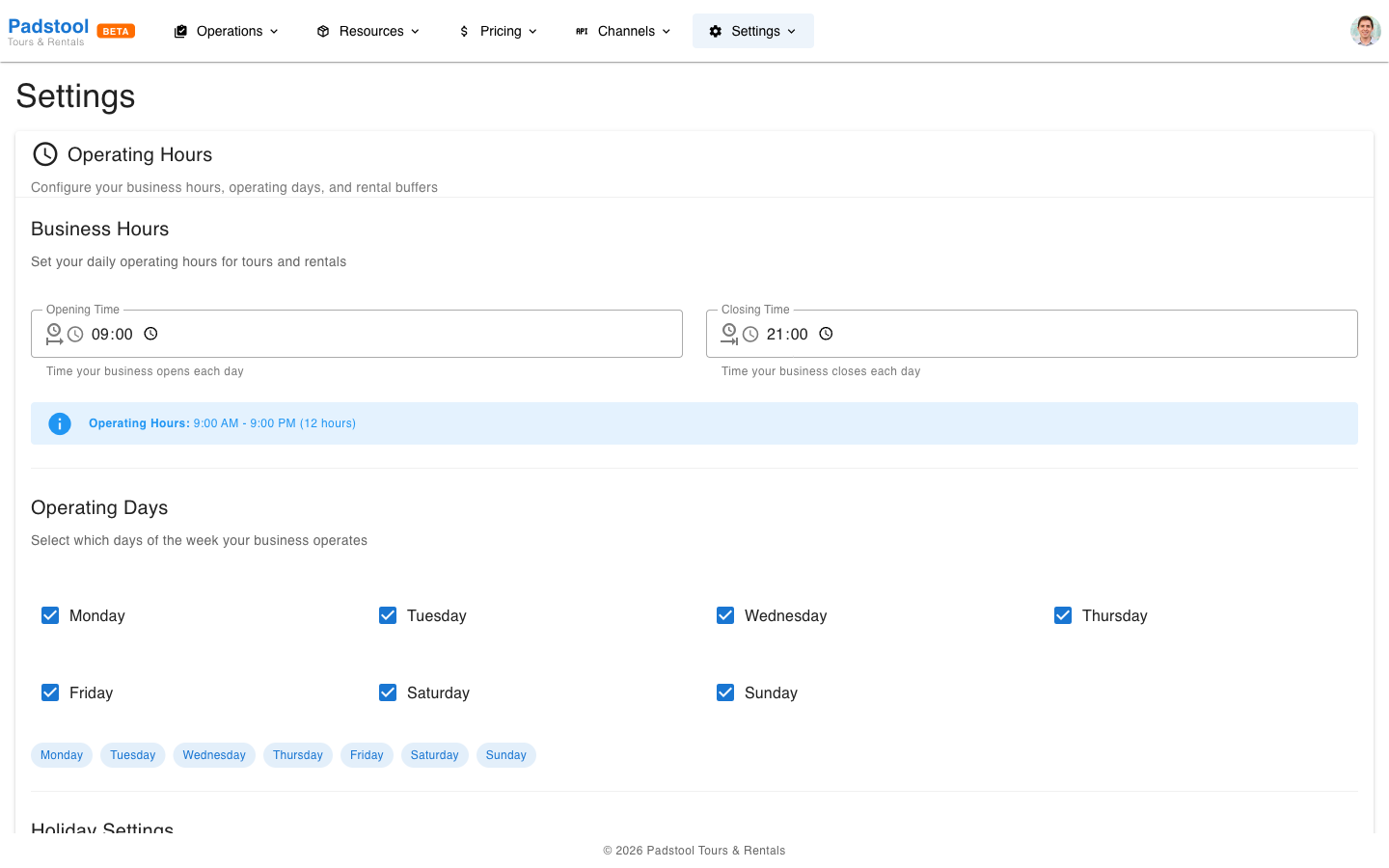
Daily schedule
Set the opening and closing times for your business:
| Setting | What it controls | Example |
|---|---|---|
| Operating days | Which days of the week you are open | Monday - Sunday (all 7 days) |
| Start time | When your business opens | 09:00 |
| End time | When your business closes | 21:00 |
Tours and rentals can only be scheduled within these hours. A tour that runs from 17:00 to 21:00 fits within operating hours. A tour ending at 22:00 would extend beyond closing time.
Example: Hamburg Bike Tours operates 7 days a week from 09:00 to 21:00, covering both morning tours and evening sunset rides.
Booking time constraints
Fine-tune how bookings are spaced and the same-day cutoff:
| Setting | What it controls | Example |
|---|---|---|
| Buffer between bookings | Minimum gap between consecutive bookings/tours | 30 minutes |
| Same-day booking cutoff | Last time for same-day bookings | 12:00 |
How these constraints work
- Buffer between bookings (30 minutes) - Ensures guides and vehicles have time between back-to-back tours.
- Same-day booking cutoff (12:00) - After noon, no more same-day bookings can be made, regardless of tour start times.
Advance booking limits live elsewhere
How far in advance customers can book, and how close to the start time bookings are still accepted, are configured under Booking Policies. The same-day cutoff above applies on top of those: e.g. with a cutoff at 12:00, same-day bookings stop at noon even if your minimum advance booking allows them otherwise.
Impact on the booking widget
Operating hours directly control what customers see in the booking widget:
- Non-operating days appear as unavailable.
- Times outside operating hours are not shown as options.
- Times after the same-day booking cutoff are no longer offered for today.
Advance booking limits (max days out, minimum notice) are enforced separately by the Booking Policies settings.
INFO
Changes to operating hours take effect immediately for new bookings. Existing bookings that fall outside updated hours are not automatically cancelled - you will need to manage those manually.
Tips
- Set operating hours before you start scheduling tours on the Availability calendar. Tours must fit within your business hours.
- The 30-minute buffer between bookings gives guides time to wrap up, prepare, and travel between locations.
- Set the same-day booking cutoff based on your preparation needs. If tours require vehicle prep and guide coordination, a noon cutoff for same-day bookings gives you adequate lead time.
- For holidays or off-season closures, simply stop scheduling tours on those dates and disable rental availability. No bookings can be made for time slots without schedules.
WARNING
Setting operating hours too narrowly may prevent evening tours from being scheduled. If you offer sunset tours ending at 21:00, make sure your end time is at least 21:00.