
Appearance
Rental Contracts
Rental contract settings let you define the Terms and Conditions that are included in all generated rental contracts. When a rental is checked out, the system produces a contract that includes these terms alongside the rental details.
How to configure rental contracts
- Navigate to Settings > Rental Contracts.
- Edit the Terms and Conditions using the rich text editor.
- Click Save.
Use the Preview button to see how the terms will appear in the final contract before saving.
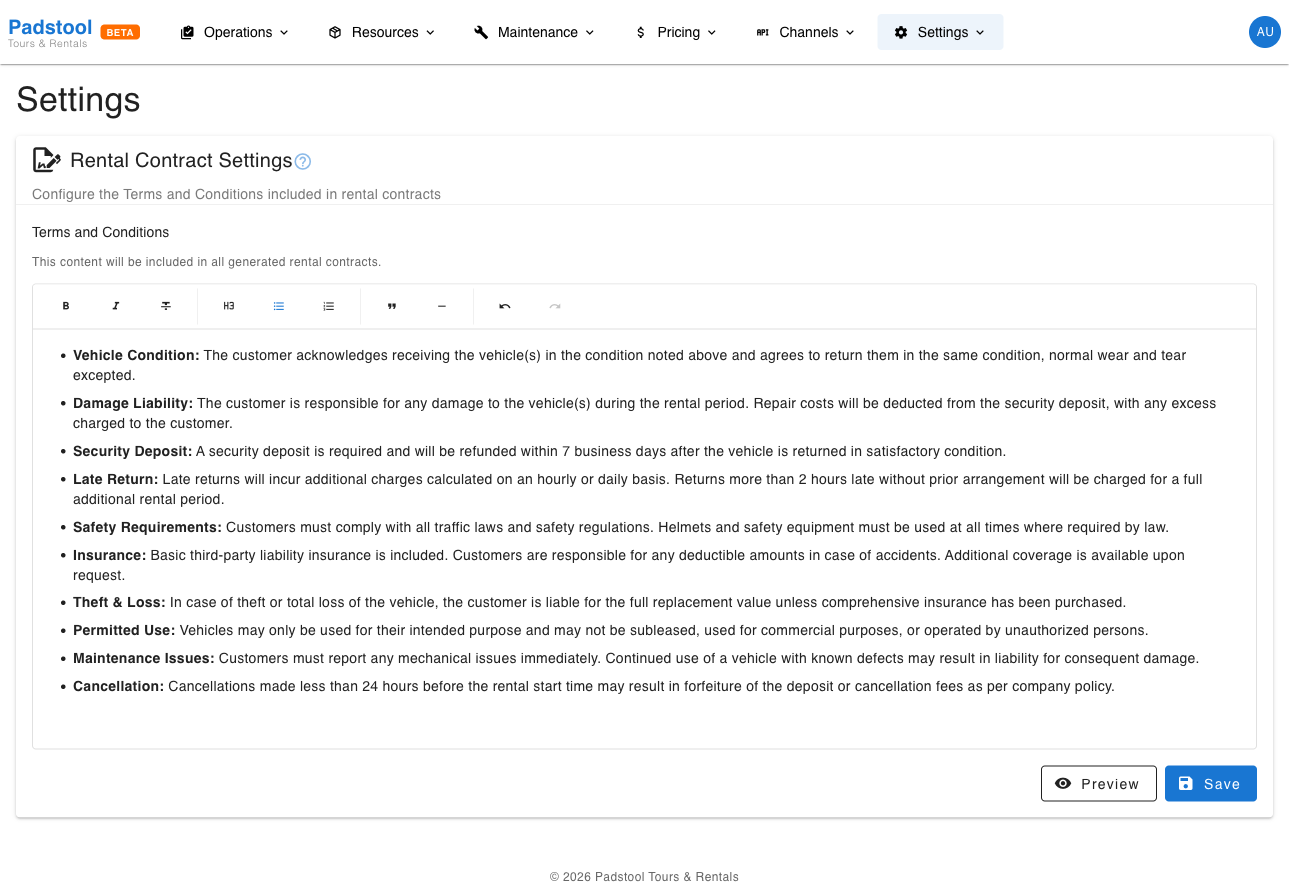
Rich text editor
The editor supports formatting to structure your terms clearly:
| Formatting | Button | Use for |
|---|---|---|
| Bold | B | Highlighting key terms and obligations |
| Italic | I | Emphasis and definitions |
| Strikethrough | S | Showing removed or superseded text during drafting |
| Heading | H3 | Section headers (e.g., "Liability", "Damage Policy") |
| Bullet list | List | Listing conditions or requirements |
| Numbered list | 1. | Step-by-step procedures (e.g., return process) |
| Blockquote | Quote | Important notices or legal disclaimers |
| Horizontal rule | Line | Separating major sections |
The editor also includes Undo and Redo buttons for easy editing.
What to include
A complete rental contract typically covers:
- Rental agreement - Who is renting, what vehicle, and for how long.
- Liability and responsibility - Customer's responsibility for the vehicle during the rental period.
- Damage policy - What happens if the vehicle is damaged or stolen, including security deposit terms.
- Return conditions - Expected condition on return, late return fees.
- Safety requirements - Helmet use, traffic rules, restricted areas.
- Cancellation and refund terms - Aligned with your booking policies.
- Insurance coverage - What is and is not covered.
Example: Hamburg Bike Tours includes sections on liability, a EUR 50 damage excess, helmet requirements, and a policy that late returns are charged at the hourly rate.
Where rental contracts appear
| Location | How it is used |
|---|---|
| Rental checkout | Terms are included in the generated contract |
| Customer signature | Customer reviews and signs the contract at checkout |
Tips
- Write terms in clear, simple language. Customers should understand their obligations without legal training.
- Structure the document with headings and lists for easy scanning - most customers will not read every word, so highlight the critical points.
- Include your security deposit amount and damage policy prominently. These are the terms customers ask about most.
- Review your terms at least once a year or whenever your policies change. Outdated terms can create confusion and potential liability.
- Use the Preview button to check formatting before saving. The preview shows exactly how the terms will appear in the contract.
WARNING
Changes to the rental contract terms apply to all future rental checkouts. Contracts already signed by customers are not affected.