
Appearance
Vehicle Assignment
Vehicle assignment settings control how bikes and other vehicles are allocated to rentals and tours - whether staff manually selects each vehicle or the system assigns them automatically.
How to configure vehicle assignment
- Navigate to Settings > Vehicle Assignment.
- Choose your assignment mode and configure the related options.
- Click Save Changes.
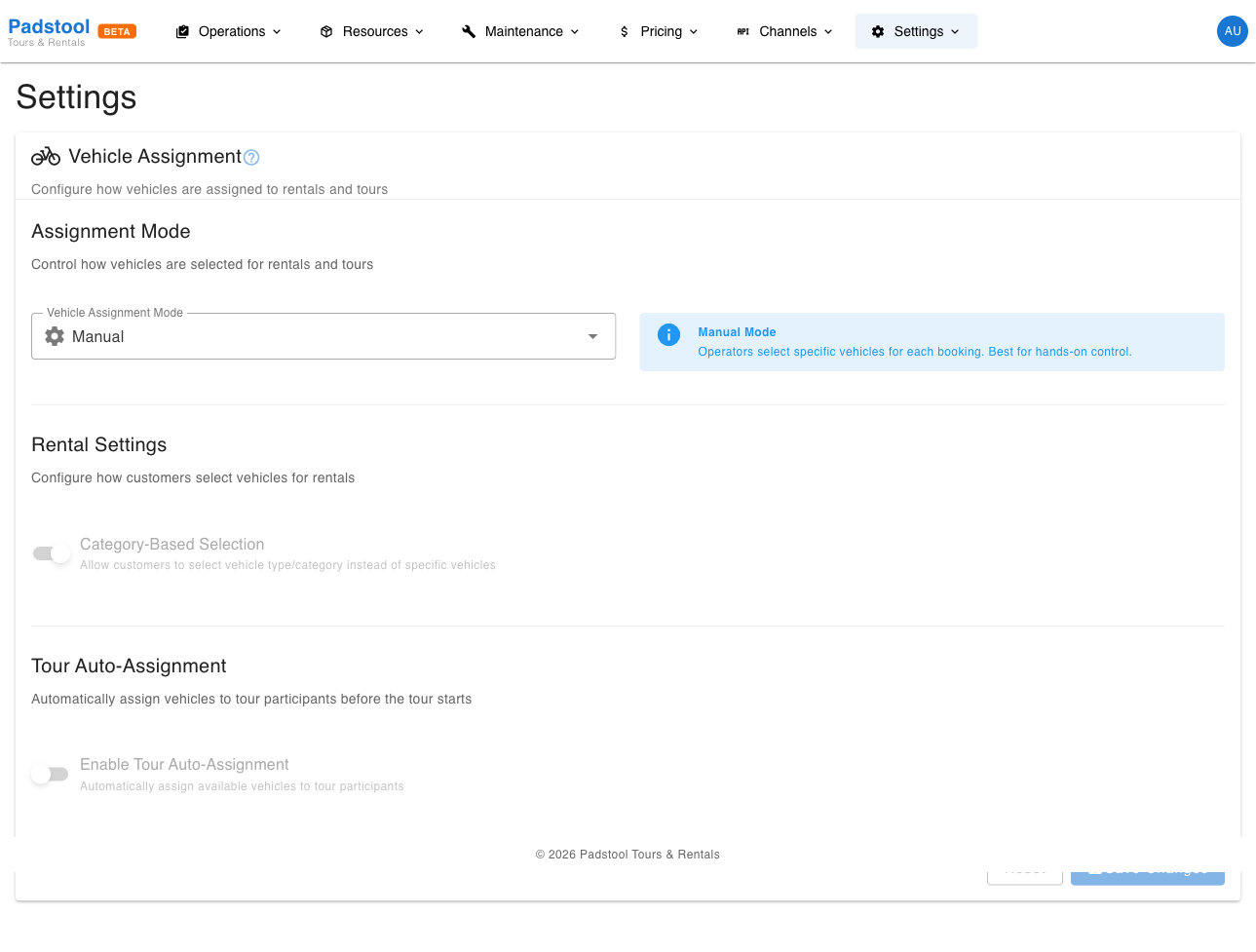
Assignment mode
The assignment mode determines the overall approach to vehicle selection:
| Mode | How it works |
|---|---|
| Manual | Staff manually selects specific vehicles for each rental or tour. All automatic features are disabled. |
| Auto | The system automatically assigns vehicles based on vehicle type preferences. |
| Hybrid | Both manual and automatic options are available depending on context. |
Example: Hamburg Bike Tours uses the hybrid mode. Walk-in rentals use manual selection so staff can pick the right bike in person, while tour participants are auto-assigned based on their selected vehicle type.
Rental settings
| Setting | What it controls | Default |
|---|---|---|
| Category-Based Selection | Allow customers to select a vehicle type/category instead of a specific vehicle | Off |
When enabled, customers booking a rental choose a vehicle type (e.g., "City Bike" or "E-Bike") rather than a specific vehicle. Staff then assign a specific vehicle from that type at checkout.
This setting is disabled when the assignment mode is set to Manual.
Tour auto-assignment
| Setting | What it controls | Default |
|---|---|---|
| Enable Tour Auto-Assignment | Automatically assign available vehicles to tour participants | Off |
| Hours Before Tour | How many hours before the tour start time to run auto-assignment | - |
When tour auto-assignment is enabled, the system automatically assigns vehicles to participants a configurable number of hours before the tour starts. This saves operators from having to manually assign vehicles on the manifest page.
The Hours Before Tour setting (1-168 hours) controls when auto-assignment runs:
- 2 hours - Last-minute assignment, useful if vehicle availability changes frequently.
- 24 hours - Day-before assignment, giving time to review and adjust.
- 48 hours - Two-day lead time for larger operations that need advance planning.
This setting is disabled when the assignment mode is set to Manual.
How vehicle assignment connects to other features
| Feature | Connection |
|---|---|
| Fleet management | Vehicles must be in "available" status to be assigned |
| Tour manifests | Shows vehicle assignments per participant, with manual override |
| Rentals | Vehicle selection during checkout follows the assignment mode |
| Tour settings | Each tour's default vehicle type guides auto-assignment |
Tips
- Start with Hybrid mode if you are unsure. It gives you the flexibility of both manual and automatic assignment without committing to either approach.
- For tour auto-assignment, 24 hours is a good starting point. This gives you time to review assignments on the manifest before the tour, while still automating the bulk of the work.
- If a participant needs a specific vehicle (e.g., a customer who requested an e-bike upgrade via an add-on), the auto-assignment respects vehicle type preferences.
- Vehicles in maintenance or marked as unavailable in fleet management are excluded from auto-assignment.
- You can always manually override auto-assigned vehicles on the manifest page before the tour starts.
INFO
Changing the assignment mode does not affect vehicles already assigned to upcoming tours or active rentals. The new mode applies to future assignments only.