
Appearance
Rentals
The rental flow manages the complete checkout-to-return process for vehicle rentals - from handing over the vehicle to the customer through inspecting it when they bring it back.
Rental dashboard
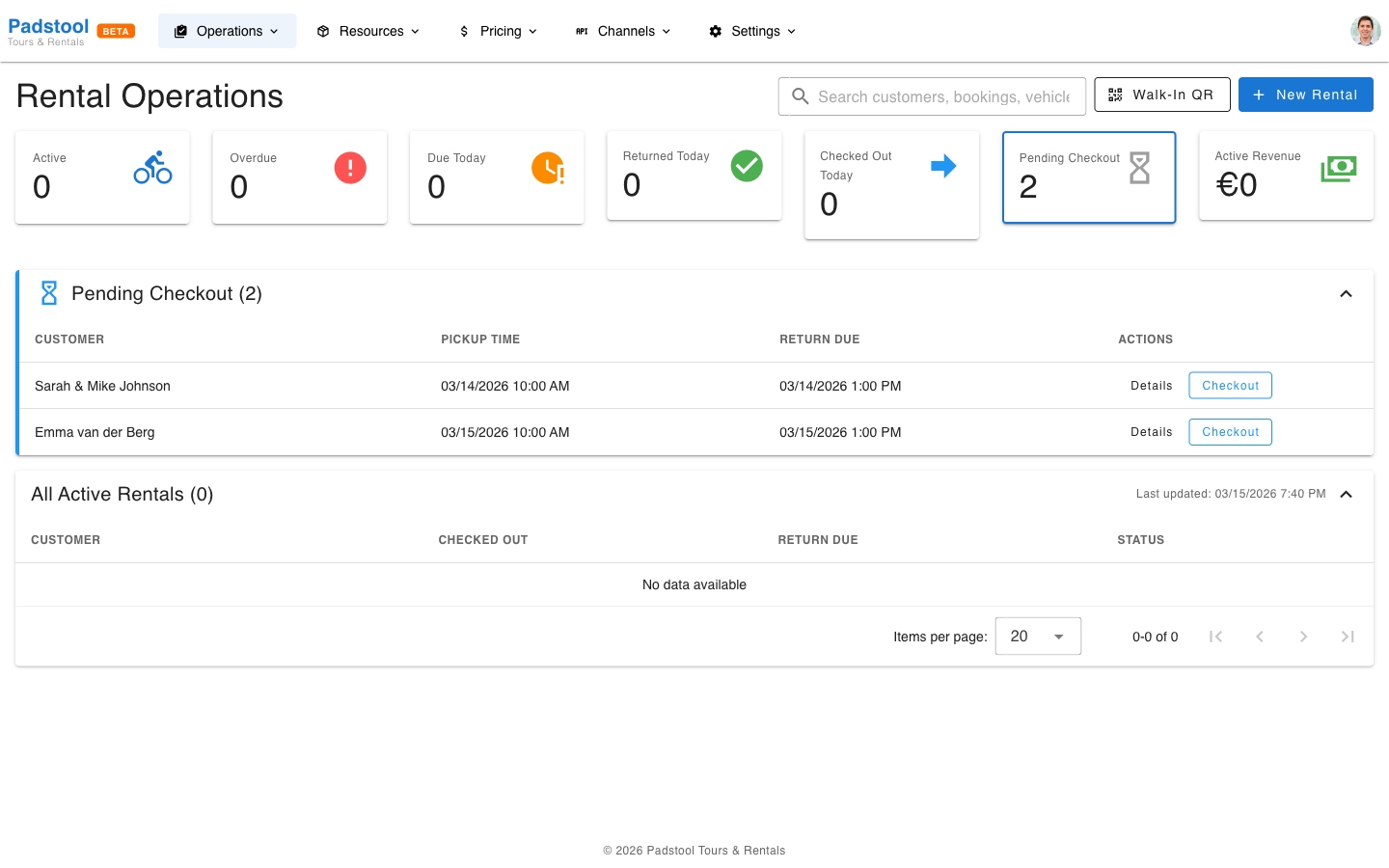
Navigate to Operations > Rentals to see the rental operations dashboard. This is the central hub for daily rental operations, showing stats cards across the top and organized sections below.
Stats cards at the top show:
- Active - Currently rented out vehicles.
- Overdue - Rentals past their scheduled return time.
- Due Today - Rentals expected back today.
- Returned Today - Vehicles returned so far today.
- Checked Out Today - Vehicles handed out today.
- Pending Checkout - Confirmed bookings waiting to be picked up.
- Active Revenue - Total revenue from currently active rentals.
Click the Active, Overdue, Due Today, or Pending Checkout cards to scroll directly to that section on the page. Each section is collapsible and shows a table of matching rentals with quick action buttons.
Rental bookings are created through the bookings page (click New Rental Booking). Once a rental booking is confirmed, you process the physical checkout and return through the rental flow.
Walk-in rental QR code
For walk-in customers who don't have a booking, you can let them self-serve using a QR code. Click the Walk-In QR button in the Rentals page header to open the QR code dialog.
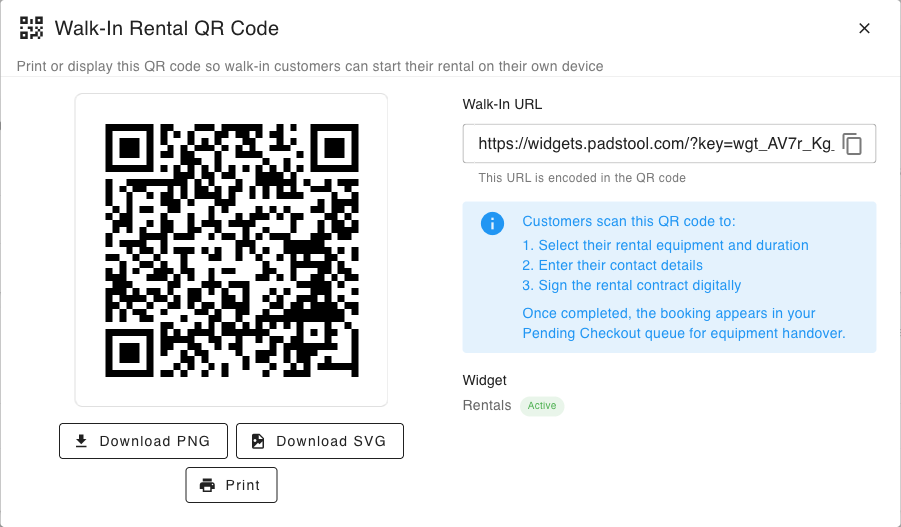
The QR code links to your booking widget in walk-in mode. When a customer scans it, they can:
- Select a vehicle type (e.g., City Bike, E-Bike) and quantity, then choose their rental duration.
- Enter their contact details.
- Sign the rental contract digitally on their own device.
Once completed, the booking appears in your Pending Checkout queue ready for equipment handover.
You can download the QR code as PNG or SVG, print it for display at your shop counter, or copy the URL to share digitally.
TIP
Print the QR code and display it at your checkout counter or shop entrance. This saves time during busy periods by letting customers fill in their details while they wait.
Checkout process
When a customer arrives to pick up their rental vehicle:
- Find the booking on the Bookings page or Rentals dashboard.
- Click Check Out.
- Verify the customer's identity against the booking details.
- Select the specific vehicle being assigned from your available fleet.
- Document the vehicle's pre-rental condition:
- Overall condition rating (excellent, good, fair).
- Note any pre-existing damage or wear.
- Accessories included (lock, helmet, lights).
- Have the customer acknowledge the handover.
- Confirm the checkout.
The vehicle's status automatically changes to Rented in your fleet, and it is removed from availability for other bookings.
WARNING
Always document the pre-rental condition thoroughly. This protects you in case of disputes about damage when the vehicle is returned.
Handover documentation
The checkout form captures a record of the vehicle's condition at the time of handover. This documentation serves as the baseline for the return inspection and includes:
- Vehicle condition - The physical state of the vehicle at checkout.
- Accessories - What was provided (helmet, lock, lights, phone mount).
- Pre-existing issues - Any scratches, dents, or mechanical notes.
- Customer acknowledgment - Confirmation that the customer received the vehicle in the documented condition.
Return process
When a customer brings a vehicle back:
- Find the active rental on the Rentals dashboard or Bookings page.
- Click Return.
- Inspect the vehicle's condition:
- Compare against the checkout documentation.
- Rate the post-rental condition.
- Note any new damage.
- Record any damage details if applicable.
- Confirm the return.
The vehicle's status changes back to Available (or to Maintenance if damage was found), and the rental booking is marked as completed.
Damage assessment
If the vehicle has been damaged during the rental:
- Document the damage during the return process.
- Note the type and severity of damage.
- The system references the pre-rental documentation to confirm the damage is new.
- Damage may affect the security deposit:
- Minor wear - No charge, deposit released.
- Moderate damage - Partial deposit retained for repairs.
- Severe damage - Full deposit retained, additional charges may apply.
Contract management
For rental bookings, a contract section is available in the booking details view. Contracts are generated during the checkout process and include the rental terms and a digital signature from the customer.
Once a contract is signed, you can:
- Download PDF - Save the signed contract as a PDF file.
- Send Email - Email the contract to the customer (or resend if already sent).
- Void Contract - Cancel the contract with a reason. This is a permanent action.
Contract settings (template content, terms, and branding) are configured under Settings > Rental Contract.
Late returns and fees
Late fees are calculated automatically based on how long the vehicle is overdue:
- The system tracks the agreed return time from the booking.
- If a vehicle is returned past the scheduled end time, late fees are calculated based on the vehicle type's hourly rate.
- Late fees are added to the booking total.
Example: A City Bike rented for a full day (€25.00) returned 3 hours late incurs 3 x €6.00 = €18.00 in late fees.
INFO
Monitor the rentals dashboard for overdue returns. Vehicles past their scheduled return time are highlighted for follow-up.
Rental period presets
Rental period presets are predefined durations that appear as quick-select options when creating a rental booking. Instead of manually entering a duration each time, operators pick from a list like "1 Hour", "Half Day", or "Full Day".
Each preset has:
- Name - The label shown to operators (e.g., "Half Day", "Weekend").
- Duration - How long the rental lasts. Hourly presets are set in hours and minutes, daily presets in days.
- Rate type - Whether the rental is charged at the hourly or daily rate (as configured on the vehicle type).
- Sort order - Controls the display order in the dropdown.
Example presets for Hamburg Bike Tours:
| Preset | Duration | Rate Type |
|---|---|---|
| 1 Hour | 1 hour | Hourly |
| 2 Hours | 2 hours | Hourly |
| Half Day | 4 hours | Hourly |
| Full Day | 1 day | Daily |
| Weekend | 2 days | Daily |
| Week | 7 days | Daily |
Configure presets under Settings > Rental Periods. You can activate or deactivate presets without deleting them - useful for seasonal offerings like a "Weekend" preset that you only need in summer.
Security deposits
Security deposits protect against damage and late returns:
| Vehicle Type | Deposit |
|---|---|
| City Bike | €100.00 |
| E-Bike | €200.00 |
| Tandem Bike | €150.00 |
| Kids Bike | €50.00 |
Deposits are held at checkout and released after a successful return with no damage. The deposit amount is configured per vehicle type on the fleet management page.
Tips
- Always document pre-rental condition with specific notes about existing wear. "Good condition, small scratch on left chainstay" is better than just "Good."
- Process returns promptly to free up vehicles for other bookings.
- Take note of any pre-existing damage before checkout to avoid charging customers for wear that was already there.
- Keep the rentals dashboard open during business hours so you can spot overdue returns quickly.
- If a vehicle needs repair after a rental, change its status to Maintenance during the return process so it is automatically excluded from availability.
TIP
Rental pricing (hourly and daily rates) is configured per vehicle type in fleet management. Seasonal adjustments to rental pricing are handled through seasonal rates.